3 Free Software Tools to Speed Up Your Computer
 Is your once-trusty computer now crawling at a snail’s pace? Do simple tasks take an eternity, leaving you frustrated and contemplating an expensive upgrade? You’re not alone. Many users experience a noticeable slowdown as their systems age.
However, before you rush out to buy a new machine, consider giving your current one a much-needed boost. This article will show you how to speed up your old computer: 3 free software tools that can make it feel like new, helping you reclaim its lost performance and extend its useful life without spending a dime.
Understanding Computer Slowdown: Why Does It Happen?
Before we dive into solutions, it’s crucial to understand why computers tend to slow down over time. It’s not always about hardware failure; often, it’s a combination of software accumulation, fragmented data, and inefficient resource management that bogs down your system.
Over months or years of use, computers accumulate a vast amount of digital clutter. This includes temporary files from web browsing, leftover installation files, duplicate documents, and unnecessary startup programs that consume valuable memory and processing power.
Each of these elements, while seemingly small on its own, contributes to a cumulative drag on your system’s overall performance. Understanding these underlying causes is the first step toward effective optimization.
The Culprits Behind Performance Degradation
Several factors contribute to a computer’s gradual decline in speed. Identifying these can help you better target your optimization efforts and understand the impact of the tools we’ll discuss. It’s a multi-faceted problem, often requiring a multi-faceted solution.
Accumulated Junk Files: Every program you install, every website you visit, and every file you download leaves behind temporary files, caches, and logs that can pile up and consume disk space.
Too Many Startup Programs: Many applications are configured to launch automatically when your computer starts, silently running in the background and consuming RAM and CPU cycles from the moment you log in.
Fragmented Hard Drive: On traditional hard disk drives (HDDs), files become scattered across different sectors over time, making it take longer for the system to access them.
Outdated Drivers and Software: Old drivers can lead to inefficiencies, and outdated software might not be optimized for your current operating system, causing compatibility issues and slowdowns.
Recognizing these common issues is half the battle. By addressing them systematically, you can significantly improve your computer’s responsiveness and overall speed, making it a more pleasant experience to use for daily tasks and even more demanding applications.
The goal is to streamline operations and free up resources that are currently being wasted.
Tool 1: CCleaner – The Digital Janitor for Your PC
The first essential tool in your arsenal for revitalizing an old computer is CCleaner. This popular, free utility is renowned for its ability to clean out digital junk, temporary files, and other unnecessary data that accumulate on your system, often without your knowledge.
Think of it as a comprehensive digital janitor, meticulously sweeping away the debris that clogs your computer’s performance.
CCleaner goes beyond just deleting temporary internet files. It delves deep into your system, identifying and removing caches, cookies, download histories, and even system logs that can take up significant disk space and slow down file access.
Its intuitive interface makes it accessible even for those who aren’t tech-savvy, allowing anyone to perform a thorough clean-up with just a few clicks.

Key Features and How to Use Them
CCleaner offers a suite of features designed to optimize your system. Understanding these features and how to leverage them effectively is key to maximizing its benefits. Regular use of CCleaner can prevent future slowdowns and maintain peak performance.
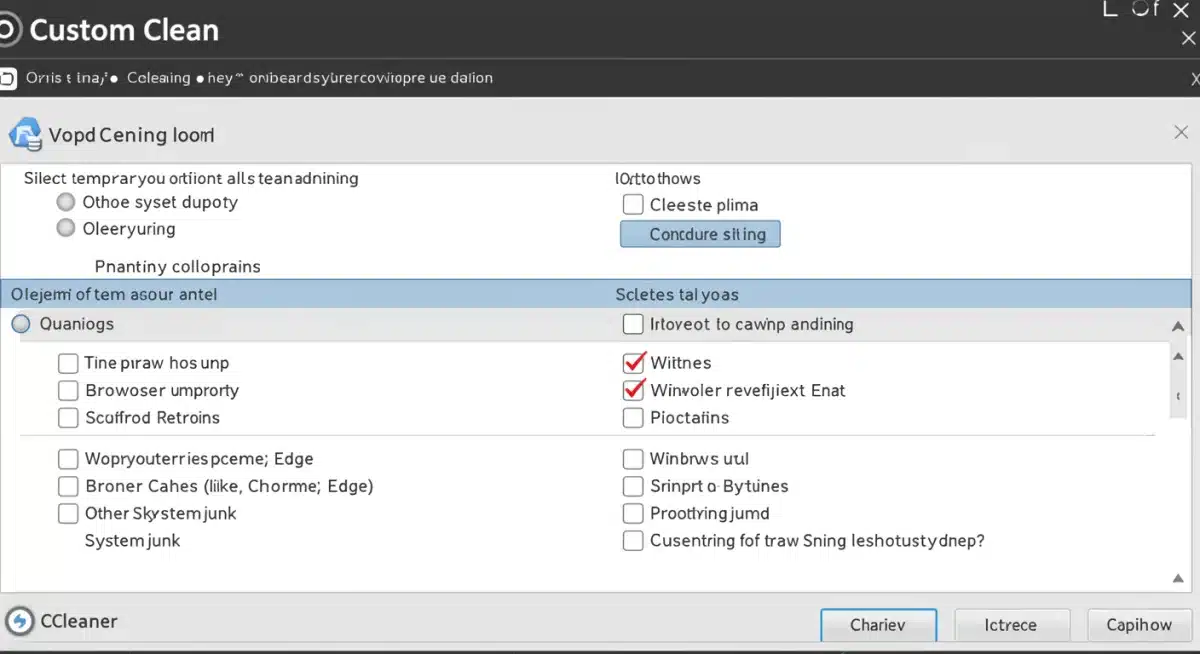
Custom Clean: This is the core feature, allowing you to select specific areas to clean, including browser caches, Windows Explorer history, system logs, and application junk files. It’s highly customizable, giving you control over what gets removed.
Registry Cleaner: Over time, the Windows Registry can become cluttered with broken entries from uninstalled programs. CCleaner’s registry cleaner can identify and fix these issues, potentially improving system stability and speed.
Tools Section: Beyond cleaning, CCleaner includes tools for managing startup programs,uninstalling software, and finding duplicate files. These tools are crucial for a comprehensive system overhaul.
To use CCleaner, simply download and install the free version from its official website. Once launched, navigate to the ‘Custom Clean’ tab, review the pre-selected options, and run the cleaner.
For a deeper dive, explore the ‘Registry’ and ‘Tools’ sections. Remember to always back up your registry before making changes, although CCleaner offers this option automatically.
The impact of CCleaner can be immediate. Users often report faster boot times, quicker application launches, and an overall more responsive system after a thorough cleaning.
It effectively clears out the digital debris that acts as a drag on your computer, making it an indispensable first step in your optimization journey.
Tool 2: Autoruns – Taking Control of Your Startup Programs
The second powerful tool to breathe new life into your old computer is Autoruns, a free utility from Microsoft’s Sysinternals suite.
While CCleaner handles accumulated junk, Autoruns tackles a different, equally critical performance bottleneck: the multitude of programs that launch automatically when Windows starts. These stealthy applications consume valuable RAM and CPU cycles from the moment you power on your machine, often without you even realizing it.
Autoruns provides an exhaustive view of all programs configured to run during system startup, login, and even scheduled tasks. This level of detail is far beyond what you’d find in Windows’ built-in Task Manager.
By giving you a comprehensive list, Autoruns empowers you to identify and disable unnecessary startup items, thereby significantly reducing your computer’s boot time and freeing up resources for the applications you actually want to use.
Unmasking and Managing Startup Bloat
The sheer number of programs that automatically start can be surprising. Many applications, even those you use infrequently, embed themselves in startup routines by default. Autoruns helps you gain granular control over this process, allowing for precise optimization.
Comprehensive Listing: Autoruns displays all possible autostart locations, including logon entries, Explorer shell extensions, Internet Explorer add-ons, scheduled tasks, services, and more. This holistic view ensures no hidden startup item goes unnoticed.
Easy Disabling: You can easily uncheck an entry to disable it from starting automatically. This is reversible, allowing you to re-enable programs if you find they are needed later.
Verification Features: Autoruns includes options to verify digital signatures of executables and even submit unknown files to VirusTotal for analysis, adding a layer of security to your cleanup process.
Using Autoruns requires a bit more caution than CCleaner, as disabling critical system processes can lead to instability.
However, for everyday applications, it’s relatively straightforward. Download Autoruns from the Microsoft Sysinternals website, extract the ZIP file, and run the executable. The interface will populate with a detailed list of all startup entries.
Focus on the ‘Logon’ tab for user-specific programs and ‘Services’ for background processes. Research any unfamiliar entries before disabling them.
A good rule of thumb is: if you don’t recognize it and it’s not from Microsoft or your essential hardware vendors, it’s likely safe to disable or at least investigate further.
The immediate benefit of using Autoruns is a noticeably faster boot time and a snappier system overall. By preventing dozens of unnecessary programs from launching and consuming resources, your computer can dedicate its power to your active tasks, making your old machine feel significantly more responsive and efficient.
Tool 3: Defraggler – Optimizing Your Hard Drive for Speed
Our third recommendation for rejuvenating a slow computer is Defraggler, another excellent free utility from Piriform, the creators of CCleaner.
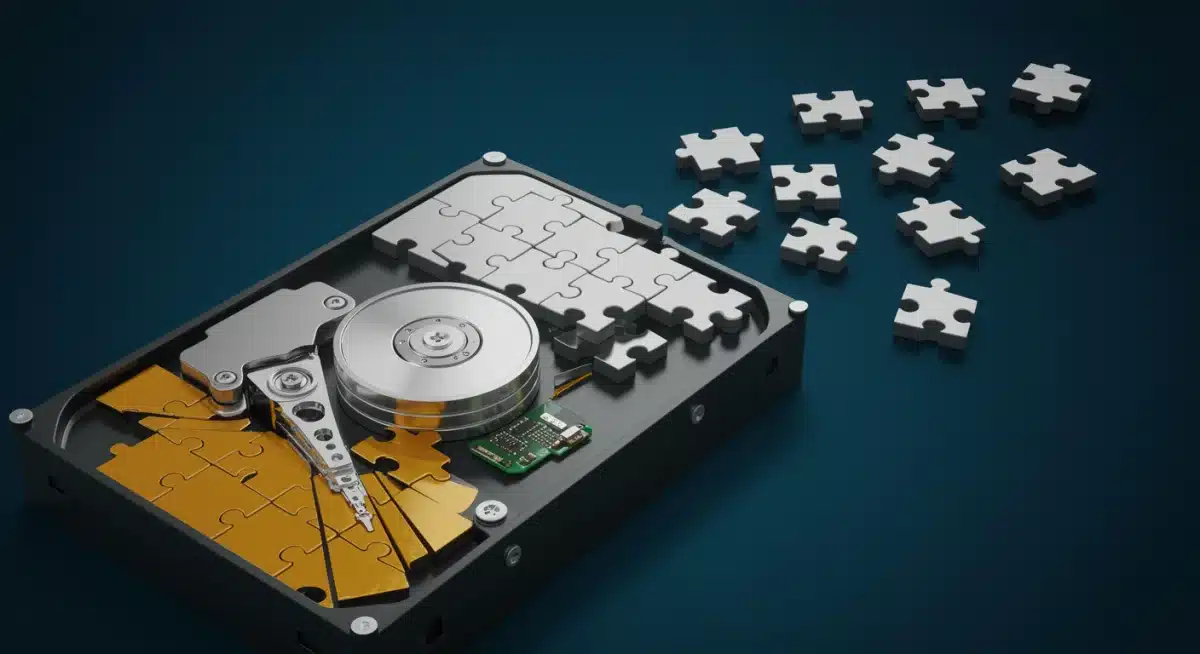
While CCleaner cleans out junk and Autoruns manages startup applications, Defraggler addresses a fundamental issue affecting traditional hard disk drives (HDDs): file fragmentation. Over time, as files are created, modified, and deleted, they become scattered across various non-contiguous sectors on your disk.
This fragmentation forces your hard drive’s read/write head to work harder, moving back and forth to retrieve all parts of a single file, leading to significantly slower access times.
Defraggler efficiently reorganizes these fragmented files, placing them into contiguous blocks.
This process streamlines data access, allowing your hard drive to read files much more quickly, which in turn speeds up everything from opening applications to loading documents and even booting your operating system. For systems still relying on HDDs, defragmentation is a crucial, often overlooked, step in performance optimization.
The Science of Defragmentation and Defraggler’s Advantages
Understanding how defragmentation works helps appreciate its impact on speed. Imagine a library where books are scattered randomly across different shelves; finding one takes ages.
Defragmentation is like reorganizing that library, putting all pages of a book together, making retrieval instant. Defraggler offers specific advantages in this organizational task.
Selective Defragmentation: Unlike some built-in defragmenters, Defraggler allows you to defragment individual files or folders, not just entire drives. This is useful for quickly optimizing frequently accessed data without a full drive defrag.
Disk Map Visualization: It provides a clear, color-coded disk map that visually represents fragmented, unfragmented, and empty space, helping you understand the state of your drive.
SSD Support (for optimization, not defragmentation): While SSDs do not require defragmentation due to their different technology, Defraggler can still analyze them and perform other optimization tasks, such as TRIM command execution, which helps maintain SSD performance.
To use Defraggler, download and install the free version. Launch the application, select the drive you wish to analyze (typically your C: drive), and click ‘Analyze’. This will show you the level of fragmentation. If it’s high, click ‘Defrag’ to begin the process.
Depending on the size and fragmentation of your drive, this can take anywhere from a few minutes to several hours. It’s often best to run a defrag overnight or when you won’t be actively using your computer.

Regular defragmentation (once a month or every few months, depending on usage) can significantly contribute to maintaining your HDD’s speed and responsiveness.
While SSD users don’t need to defragment, the other two tools remain highly relevant for all types of storage. By ensuring your data is efficiently organized, Defraggler helps your old computer access information faster, making it feel more sprightly and responsive.
Beyond Software: Essential Maintenance Tips
While the three free software tools – CCleaner, Autoruns, and Defraggler – provide a powerful foundation for optimizing your old computer, software alone isn’t the complete picture.
Proper physical and digital hygiene also play a critical role in maintaining performance and extending the life of your machine. Integrating these practices into your routine will complement the software tools, ensuring a truly revitalized experience.
Think of it as comprehensive care: the software cleans and organizes the digital realm, while these maintenance tips address the physical and broader operational aspects.
Neglecting one area can undermine the benefits gained in another, leading to a less than optimal outcome. A holistic approach is always best for long-term computer health and speed.
Hardware and Software Best Practices
Maintaining your computer involves both what you see on the screen and what’s under the hood. A few simple habits can make a significant difference in preventing slowdowns and ensuring smooth operation. These practices are often overlooked but are vital for sustained performance.
Keep Your Operating System Updated: Windows updates often include performance improvements, bug fixes, and security patches that are crucial for a healthy and efficient system. Regularly check for and install these updates.
Clean Physical Components: Dust accumulation inside your computer can lead to overheating, which in turn causes performance throttling. Periodically clean your computer’s fans and vents with compressed air.
Monitor Hard Drive Space: Ensure you always have at least 15-20% of your primary drive’s space free. When a drive is too full, it slows down significantly as the system struggles to manage data.
Regular Malware Scans: Malicious software can consume resources and cause severe slowdowns. Use a reputable antivirus program to perform regular scans and keep your system clean.
Implementing these simple yet effective maintenance tips alongside the recommended software tools will create a robust strategy for keeping your old computer running smoothly.
It’s about proactive care rather than reactive troubleshooting, ensuring your machine remains a reliable companion for your daily tasks. Consistency in these practices is key to long-term performance.
Advanced Optimization Techniques and Tools for Tech Enthusiasts
For users comfortable exploring deeper system settings, advanced optimization techniques and performance tools can extract even more efficiency from an older computer.
These approaches often involve adjusting system configurations that aren’t immediately visible to casual users but can deliver noticeable improvements—especially on machines with limited memory or processing power.
Advanced optimization tools allow you to fine-tune the operating system by prioritizing performance over visual effects or nonessential background processes. When used correctly, these tools help allocate system resources more effectively, resulting in faster boot times, smoother multitasking, and improved overall responsiveness.
Before applying any advanced optimization tools or system-level adjustments, it’s strongly recommended to create a system restore point.
This precaution ensures you can safely roll back changes if a tweak causes unexpected issues. While powerful, these optimization tools require a thoughtful approach, a basic understanding of system behavior, and a willingness to experiment carefully with configurations.
When used responsibly, advanced performance tools can significantly extend the life and usability of aging hardware, making them an excellent option for tech enthusiasts seeking maximum efficiency without investing in new equipment.
Tweaking Windows Settings for Maximum Performance
Windows offers various built-in options that can be adjusted to favor performance. These settings, often hidden in plain sight, can reduce visual clutter and background processes that consume valuable system resources. Optimizing these can free up significant processing power and memory.
Adjust Visual Effects: Windows uses many visual effects that consume resources. Go to ‘System Properties’ > ‘Advanced’ tab > ‘Performance Settings’ and choose ‘Adjust for best performance’ to disable most animations and visual flourishes.
Disable Unnecessary Services: Many Windows services run in the background, even if you don’t need them. Use the ‘Services’ manager (type ‘services.msc’ in Run) to identify and disable non-essential services, but proceed with caution and research each service before disabling.
Power Plan Settings: Ensure your power plan is set to ‘High Performance’ (if available) instead of ‘Balanced’ or ‘Power Saver’. This prevents your CPU from throttling its speed to save energy.
Virtual Memory Management: While Windows typically manages virtual memory (page file) automatically, on systems with limited RAM, manually setting a custom size (initial and maximum) can sometimes improve stability and performance.
These advanced techniques, when applied judiciously, can provide a noticeable boost to your computer’s speed and responsiveness.
They are particularly beneficial for older machines where every bit of resource optimization counts. By combining these manual tweaks with the free software tools, you can truly transform a sluggish system into a remarkably efficient one, extending its usability for years to come.
The Importance of Regular Optimization and Patience When Using Tools

Revitalizing an old computer is not a one-time fix—it’s an ongoing process that requires regular attention and the right optimization tools.
Just as a car needs routine maintenance to perform well, your computer benefits from consistent use of optimization tools to prevent the buildup of digital clutter and system inefficiencies. This approach creates healthy digital habits that help your machine stay responsive and dependable over time.
It’s also important to set realistic expectations when working with performance tools. While these solutions can dramatically improve speed and stability, they won’t turn an aging computer into a brand-new high-performance machine.
Instead, optimization tools are designed to help your system operate at its maximum potential, making everyday tasks faster, smoother, and less frustrating.
Patience plays a crucial role in the optimization process. Some tools require time to scan, clean, or reorganize system resources, but the results are worth the wait.
By consistently applying these tools and maintaining realistic expectations, you can extend your computer’s usability and enjoy a more reliable computing experience for years to come.
Creating a Routine for Sustained Performance
Establishing a routine for computer maintenance is the most effective way to ensure sustained performance. Consistency is far more impactful than sporadic, intensive cleanups.
By integrating these tasks into your regular schedule, you can prevent major slowdowns before they occur and keep your system running optimally.
Weekly Clean-up (CCleaner): Run CCleaner weekly to clear out temporary files, browser caches, and other digital debris that accumulates quickly. This keeps your disk space tidy and prevents small files from becoming a large problem.
Monthly Review (Autoruns): Once a month, check Autoruns for any new programs that have added themselves to your startup sequence. Disable anything unnecessary to maintain fast boot times and free up RAM.
Quarterly Defragmentation (Defraggler for HDDs): If you have an HDD, perform a full defragmentation every two to three months. This keeps your files organized and ensures efficient data access. SSD users can skip this but should ensure TRIM is active.
Operating System and Driver Updates: Make it a habit to check for and install Windows updates and driver updates for your hardware (graphics card, sound card, etc.) as they become available. These often include crucial performance and security enhancements.
By adopting a consistent approach to computer maintenance, you’ll not only enjoy a faster, more reliable machine but also develop a deeper understanding of how your system operates.
This proactive mindset, combined with the power of the free software tools discussed, empowers you to extend the useful life of your old computer and make it feel remarkably new again, saving you money and frustration.
| Tool | Primary Function |
|---|---|
| CCleaner | Removes temporary files, caches, and system junk. |
| Autoruns | Manages and disables unnecessary startup programs. |
| Defraggler | Defragments traditional hard disk drives (HDDs). |
| General Maintenance | Physical cleaning, OS updates, malware scans for overall health. |
Frequently Asked Questions About Computer Optimization
It’s recommended to run CCleaner weekly for general clean-up. Autoruns can be checked monthly for new startup entries.
For HDDs, Defraggler should be used quarterly. Consistency helps maintain peak performance and prevents significant slowdowns over time.
Yes, CCleaner, Autoruns, and Defraggler are widely recognized and generally safe. Always download them from their official websites to avoid modified versions.
Exercise caution with Autoruns by researching unknown entries before disabling them to prevent system instability.
CCleaner and Autoruns are beneficial for SSDs as they clean junk and manage startup programs. Defraggler is not needed for SSDs, as they don’t suffer from fragmentation like HDDs. In fact, defragmenting an SSD can reduce its lifespan, so avoid it.
If performance issues persist, consider checking for hardware limitations, such as insufficient RAM or an aging hard drive. Upgrading RAM or switching to an SSD can provide a significant boost if software optimizations aren’t enough to meet your demands.
Generally, yes. These tools are designed to be compatible with most modern versions of Windows, including Windows 7, 8, 10, and 11. Always check the specific software’s system requirements to ensure full compatibility with your operating system.
Conclusion
In conclusion, you don’t always need to invest in new hardware to bring an aging computer back to life.
By strategically using free software tools such as CCleaner, Autoruns, and Defraggler—along with consistent maintenance habits—you can significantly improve system performance and responsiveness.
These optimization tools target the most common causes of slowdowns, including digital clutter, unnecessary startup processes, and fragmented hard drives.
When used together, they offer a comprehensive and effective approach to improving speed and stability without spending money.
Regularly applying these maintenance tools, while also paying attention to your computer’s physical care, is essential for extending its lifespan and maintaining a smooth, frustration-free experience.
With the right tools and a little consistency, your old computer can transform from sluggish and unreliable into a capable device you can continue to depend on.