9 Simple Fixes That Will Speed Up Your Old Laptop Fast
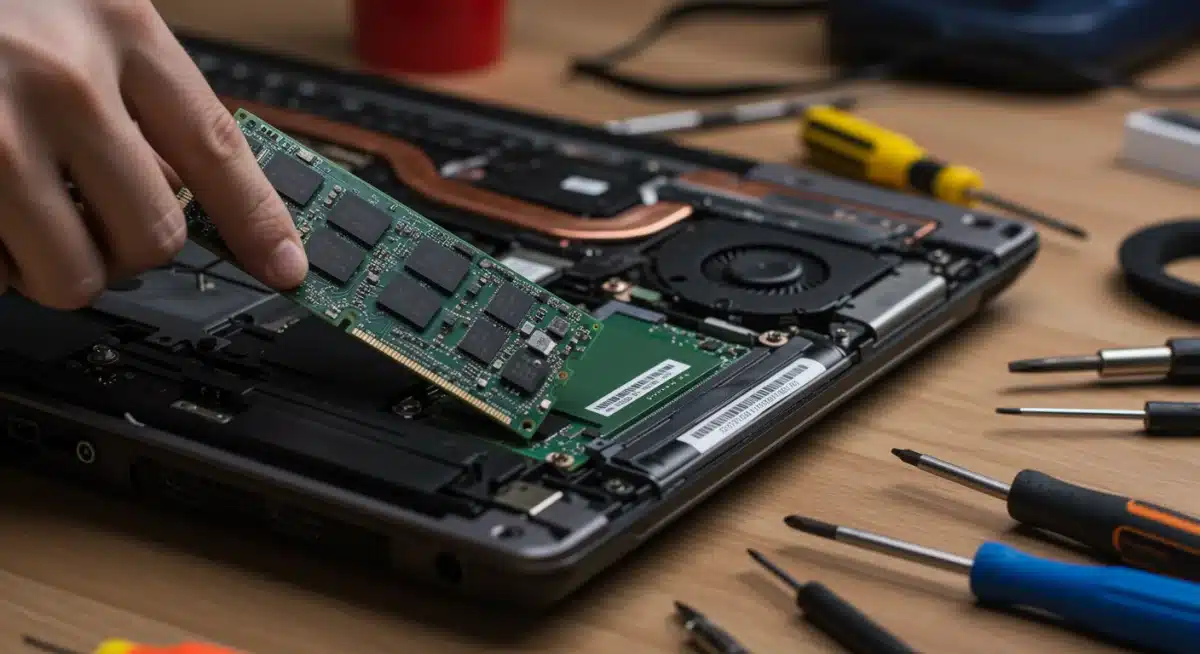
 Upgrading an old laptop to enhance its performance doesn’t have to be complicated or expensive. In fact, the most effective improvements come from a few simple hardware upgrades paired with simple software optimizations.
Key changes like installing a Solid State Drive (SSD) and increasing Random Access Memory (RAM) can dramatically improve speed, boot times, and overall responsiveness.
When combined with basic system cleanups and performance tweaks, these simple steps can transform even an aging laptop into a fast, reliable machine for everyday use.
Is your once-speedy laptop now crawling, testing your patience with every click, app launch, and loading screen? You’re definitely not alone.
Many users find themselves stuck with an older device that struggles to meet modern software demands. Over time, heavier operating systems, frequent updates, and more resource-hungry applications slowly push older hardware to its limits.
Before you consider spending hundreds—or even thousands—of dollars on a new laptop, it’s worth knowing that there are simple, cost-effective solutions that can deliver impressive results. You don’t need advanced technical skills or specialized tools.
These upgrades are intentionally simple, accessible, and widely supported with step-by-step guides that make the process manageable even for beginners.
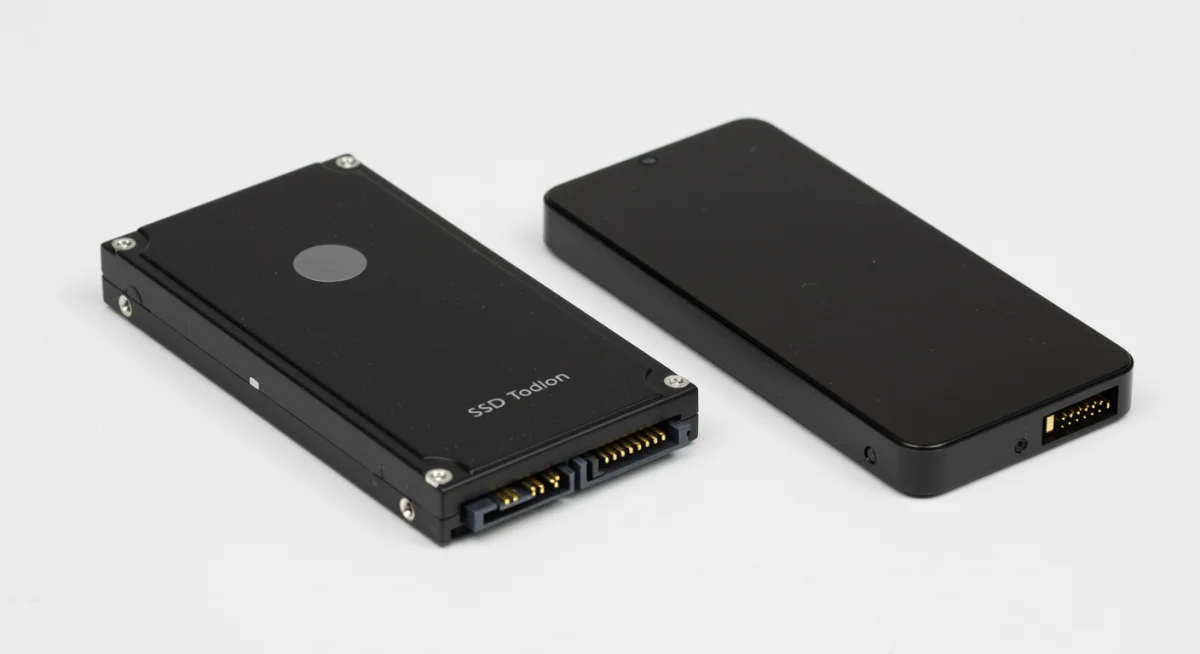
Replacing a traditional hard drive with an SSD is one of the most simple yet powerful ways to boost performance.
SSDs eliminate the mechanical delays of older drives, resulting in faster boot times, quicker file access, and smoother overall operation. Likewise, adding more RAM is a simple upgrade that allows your laptop to handle multiple programs at once without freezing or lagging.
Beyond hardware, simple software optimizations play a crucial role. Removing unnecessary startup programs, cleaning temporary files, updating drivers, and ensuring your system is free from malware can unlock hidden performance potential.
These small but simple adjustments often make a noticeable difference on their own—and even more so when paired with hardware improvements.
Together, these simple upgrades and optimizations can breathe new life into your trusted laptop, transforming it from a sluggish, frustrating device into a surprisingly capable workhorse.
With the right approach, improving your laptop’s performance doesn’t require a replacement—just a few smart, simple changes that deliver fast and lasting results.
SSDs store data on flash memory chips, similar to a USB drive, but much faster. Unlike HDDs, they have no moving parts, which means data can be accessed almost instantaneously.
This translates to significantly faster boot times, quicker application launches, and a much more responsive overall system.
Even if your laptop has an older processor, an SSD can mask some of its limitations by reducing the time spent waiting for data.
Why an SSD is a Must-Have Upgrade
The benefits of an SSD extend beyond just raw speed; they also contribute to a better user experience and increased device longevity.
Blazing Fast Boot Times: Your laptop will go from off to ready-to-use in seconds, not minutes.
Rapid Application Loading: Programs like web browsers, word processors, and photo editors will open almost instantly.
Improved System Responsiveness: Multitasking becomes smoother, and file transfers are significantly faster.
Increased Durability: Without moving parts, SSDs are more resistant to drops and bumps, making them ideal for portable devices.
Lower Power Consumption: SSDs use less power than HDDs, potentially extending your laptop’s battery life.
The process of upgrading to an SSD involves cloning your existing hard drive to the new SSD or performing a fresh installation of your operating system.
While cloning is convenient, a fresh OS install can often yield even better performance by eliminating old, unnecessary files. This upgrade alone is often enough to convince users that they don’t need a new laptop, making it the most impactful way to speed up your old laptop.
Boosting Multitasking: Adding More RAM
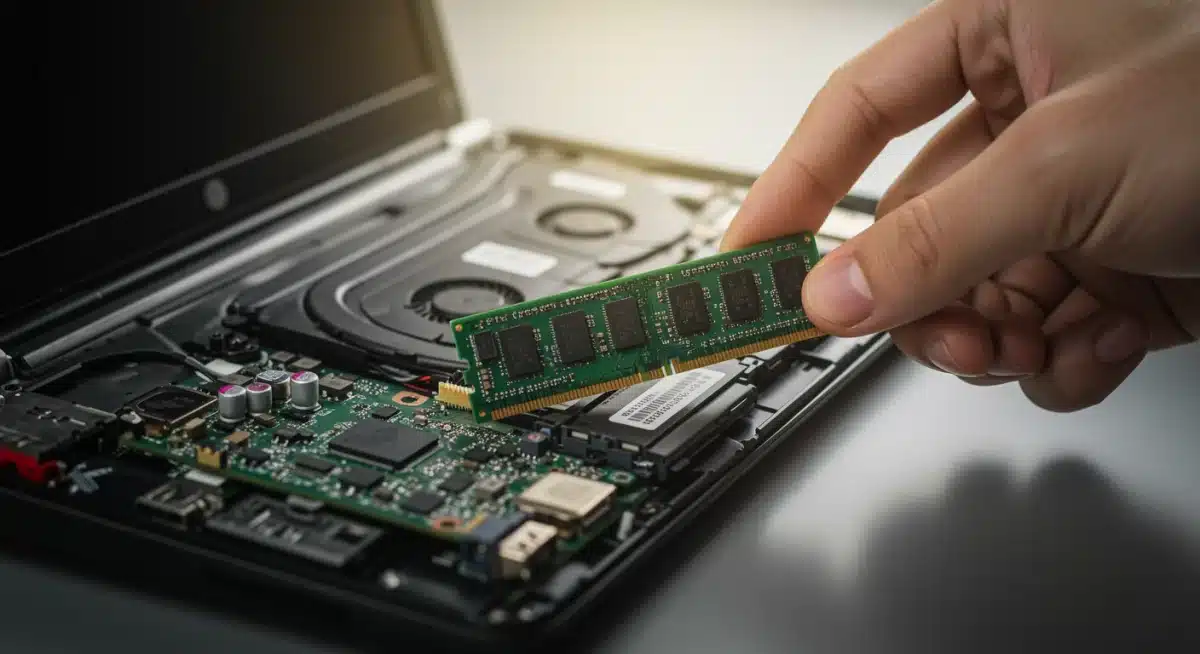
After an SSD upgrade, the next most effective way to speed up your old laptop is to increase its Random Access Memory (RAM). RAM is your computer’s short-term memory, where it temporarily stores data that the CPU needs to access quickly.
The more RAM you have, the more programs and processes your laptop can handle simultaneously without slowing down.
This is particularly noticeable when you’re browsing with many tabs open, editing photos, or running multiple applications at once.
Many older laptops come with 4GB of RAM, which was adequate a few years ago but is often insufficient for today’s software.
Upgrading to 8GB or even 16GB can dramatically improve your multitasking experience. When your system runs out of physical RAM, it resorts to using a portion of your hard drive as virtual memory, which is significantly slower.
This constant swapping between RAM and the hard drive is a major cause of slowdowns and stuttering.
Choosing and Installing the Right RAM
Selecting the correct RAM involves checking your laptop’s specifications, but the installation process is generally straightforward.
Check Compatibility: Determine the type of RAM (DDR3, DDR4, etc.) and the maximum capacity your laptop supports. Tools like CPU-Z can help identify your current RAM.
Purchase Matching Modules: Buy RAM modules with the same speed (MHz) and type as your existing ones, or replace them entirely with a matched pair for optimal performance.
Simple Installation: Most laptops have easily accessible RAM slots. It typically involves unscrewing a panel, popping out the old modules, and snapping in the new ones.
The impact of sufficient RAM is immediately noticeable, especially for users who frequently switch between applications or work with demanding software.
Combined with an SSD, a RAM upgrade creates a powerful synergy that makes your old laptop feel incredibly responsive.
It’s a relatively inexpensive upgrade that offers a significant return on investment, making it a key step to effectively speed up your old laptop.
Software Optimizations: Beyond Hardware Upgrades
While hardware upgrades like SSDs and RAM offer the most significant performance boosts, don’t underestimate the power of software optimizations. Even with top-tier hardware, a cluttered or poorly configured operating system can still lead to frustrating slowdowns. These software tweaks are often free and can be implemented immediately, providing noticeable improvements without opening your laptop’s casing. They are essential steps to truly speed up your old laptop and maintain its performance over time.
Regular maintenance and smart software choices are key. This includes managing startup programs, keeping your operating system and drivers updated, and regularly cleaning up unnecessary files.
Over time, your system accumulates temporary data, browser caches, and uninstalled program remnants that can consume disk space and slow down file access. Addressing these issues systematically can free up resources and improve overall responsiveness.
Key Software Strategies
Implementing these software strategies will complement any hardware upgrades and ensure your laptop runs at its best.
Manage Startup Programs: Disable unnecessary applications from launching automatically when your laptop boots up. This significantly reduces boot time and frees up RAM.
Keep OS and Drivers Updated: Ensure your operating system (Windows, macOS, Linux) and all hardware drivers are up to date. Updates often include performance improvements and bug fixes.
Regular Disk Cleanup and Defragmentation (for HDDs): Use built-in tools to remove temporary files and optimize disk space. (Note: SSDs do not need defragmentation.)
Uninstall Unused Software: Remove programs you no longer use. They consume disk space and can sometimes run background processes.
Scan for Malware: Regularly run a comprehensive antivirus and anti-malware scan to eliminate malicious software that can drain resources.
Browser extensions, while useful, can also be resource hogs. Review and disable any extensions you don’t frequently use. Similarly, consider using lighter alternatives for demanding applications if your workflow allows.
By diligently applying these software optimizations, you can ensure that your hardware upgrades are fully utilized and continue to speed up your old laptop effectively.
Maintaining Performance: Best Practices for Longevity
Upgrading your hardware and optimizing your software are excellent first steps to speed up your old laptop. However, maintaining that improved performance requires ongoing effort and good computing habits.
Think of it like car maintenance; regular check-ups and mindful driving ensure a smooth ride for longer. Neglecting these practices can lead to a gradual decline in performance, even on a newly upgraded system.
A clean and organized digital environment contributes significantly to a fast and responsive computer. This includes managing files, monitoring resource usage, and being selective about what you install.
Over time, accumulated data, background processes, and unmanaged software can once again bog down your system.
By adopting a proactive approach, you can ensure your laptop remains snappy and efficient for years to come.
Habits for Sustained Laptop Health
Integrate these practices into your routine to keep your revitalized laptop running at peak performance.
Regular File Cleanup: Delete old downloads, empty your recycle bin, and move large, infrequently accessed files to external storage.
Monitor Background Processes: Use Task Manager (Windows) or Activity Monitor (macOS) to identify and close resource-intensive applications running in the background.
Browser Management: Periodically clear browser cache and cookies. Consider using a lighter browser or limiting the number of open tabs.
Sensible Software Installation: Only install software you truly need and trust. Be wary of installers that bundle unwanted programs.
Physical Cleaning: Regularly clean your laptop’s vents and keyboard to prevent dust buildup, which can lead to overheating and throttling (performance reduction).
Furthermore, consider a fresh operating system reinstallation every few years. While it’s a more drastic step, it can completely eliminate accumulated cruft and provide a truly clean slate, often resulting in a significant performance boost.
By combining smart upgrades with consistent maintenance, you can truly speed up your old laptop and extend its useful life considerably.
When to Consider a New Laptop: Knowing the Limits
While upgrading and optimizing can work wonders, there comes a point when an old laptop simply reaches its technological limits.
Understanding when to stop investing in upgrades and consider a new machine is crucial for both your wallet and your productivity.
The goal is to speed up your old laptop to a usable state, not to turn it into a high-end gaming rig if its core components are fundamentally too old.
There are diminishing returns, and sometimes, the cost of incremental upgrades might approach the price of a more capable entry-level new device.
Key indicators that it might be time for a new laptop include an extremely old processor, a non-upgradable motherboard, or persistent issues even after significant upgrades.
If your laptop is more than 7-8 years old, its processor architecture might be too outdated to efficiently run modern software, regardless of how much RAM or SSD storage you add.
Furthermore, some laptops have soldered RAM or hard drives, making upgrades impossible or prohibitively expensive.
Signs It’s Time for an Upgrade, Not a New Purchase
Before throwing in the towel, assess if your current issues can be resolved with the simple upgrades discussed.
Slow Boot Times: Often fixed by an SSD.
Laggy Multitasking: Usually resolved with more RAM.
Frequent Freezes During Light Use: Can be due to software bloat or insufficient RAM.
Signs It’s Time for a New Laptop
Extremely Old Processor: If your CPU is struggling with basic tasks even with an SSD and ample RAM.
Non-Upgradable Components: If RAM or storage cannot be easily upgraded.
Hardware Failures: Repeated component failures (e.g., screen, keyboard, battery) that are costly to replace.
Lack of Modern Ports/Connectivity: Missing essential ports like USB-C, or outdated Wi-Fi standards.
Ultimately, the decision rests on a cost-benefit analysis. If a couple hundred dollars in upgrades can make your laptop perform adequately for your needs for another two to three years, it’s a worthwhile investment.
However, if you’re looking at replacing multiple expensive components, or if the core processor is simply too slow for your daily tasks, then it might be time to start saving for a new machine that offers better long-term value.
Knowing these limits ensures you make the smartest decision to either speed up your old laptop or move on to a new one.
| Upgrade Type | Performance Impact |
|---|---|
| SSD Installation | Drastically improves boot times, application loading, and overall system responsiveness. |
| RAM Expansion | Enhances multitasking capabilities and reduces slowdowns when running multiple programs. |
| Software Optimization | Frees up resources, improves boot speed, and maintains system efficiency through cleanup and updates. |
| Physical Cleaning | Prevents overheating, which can throttle performance, ensuring components run optimally. |
Frequently Asked Questions About Simple Laptop Upgrades
Can I really speed up my old laptop significantly with these simple upgrades? ▼
Absolutely. Simple upgrades like replacing a traditional HDD with an SSD and adding more RAM deliver the biggest performance gains.
Many users find that after these simple improvements, their old laptops feel dramatically faster for everyday tasks, multitasking, and web browsing.
Is it difficult to install an SSD or RAM myself, or is it a simple process? ▼
For most laptops, the process is surprisingly simple and requires only basic tools, such as a small screwdriver.
There are countless step-by-step tutorials online that make these simple upgrades easy to follow, even for beginners. If you prefer, a local repair shop can handle the installation for a modest fee.
How much do simple laptop upgrades typically cost? ▼
Simple upgrades are usually very affordable. A 250GB–500GB SSD generally costs between $30–$60, while 8GB–16GB of RAM ranges from $30–$80.
These simple investments cost far less than purchasing a brand-new laptop.
Will making simple upgrades void my laptop’s warranty?
In many regions, including the U.S., performing simple hardware upgrades does not automatically void your warranty due to consumer protection laws.
However, any damage caused during the upgrade process may not be covered, so it’s important to proceed carefully.
What if my laptop is still slow after these simple upgrades?
If your laptop remains slow even after these simple improvements, the issue may be related to an aging processor or a failing motherboard.
In this case, investing in a new laptop might be the more practical and cost-effective solution.
Conclusion
Revitalizing an aging laptop doesn’t have to mean a trip to the electronics store for a brand-new device. By strategically addressing common performance bottlenecks, you can significantly speed up your old laptop and extend its useful life by several years.
The most impactful upgrades, such as replacing a traditional hard drive with a speedy Solid State Drive (SSD) and expanding your Random Access Memory (RAM), offer a dramatic return on investment.
These hardware enhancements, coupled with consistent software optimizations like managing startup programs and regular system cleanups, create a powerful synergy that transforms a sluggish machine into a responsive and enjoyable one.
Understanding the limits of your hardware is also key; while upgrades can work wonders, there comes a point where the core components are simply too old for modern demands.
However, for many users, these simple steps provide a cost-effective and highly satisfying solution, proving that there’s plenty of life left in that old laptop.