How to Optimize Your Gaming PC and Gain 25% More FPS
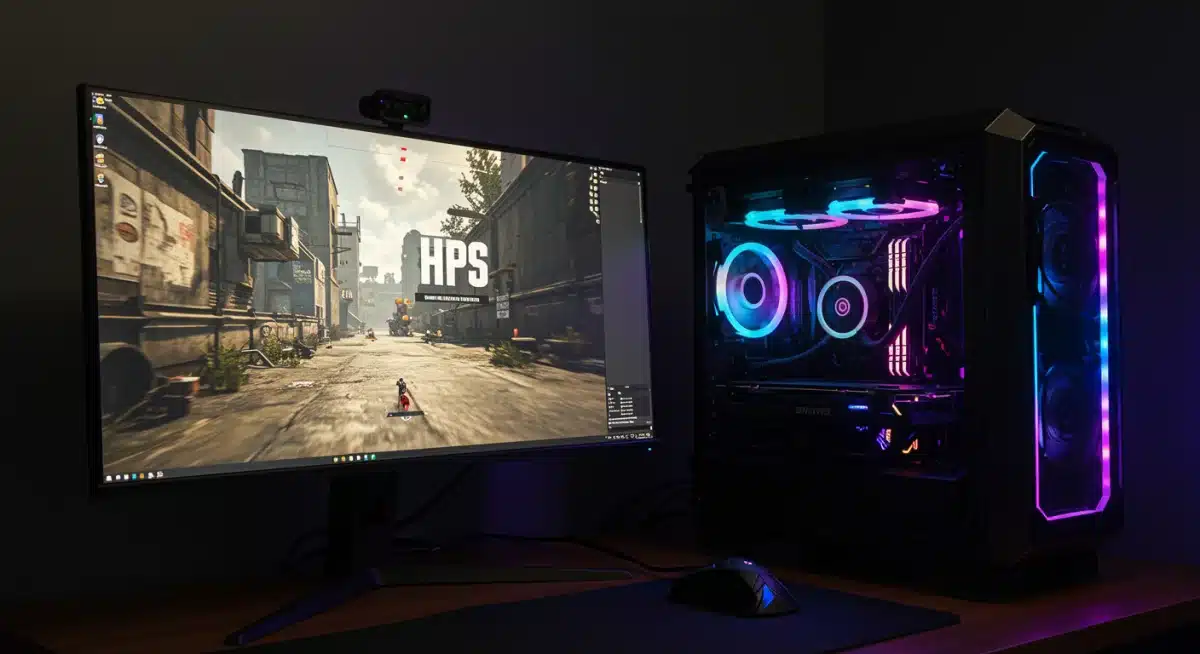
 Are you looking to squeeze every last frame out of your current setup without breaking the bank? This guide will show you how to optimize your gaming PC and potentially increase your FPS by 25% or more, all without upgrading a single piece of hardware.
Get ready to transform your gaming experience with these practical, effective steps!
Update drivers and operating system
Outdated drivers and an unoptimized operating system can be significant bottlenecks for your gaming performance. Keeping these components current is one of the easiest and most effective ways to ensure your hardware is running at its peak efficiency. Modern drivers often include performance optimizations specifically tailored for the latest games.
Regularly checking for and installing the newest drivers for your graphics card, chipset, and other peripherals is crucial.
These updates frequently contain critical bug fixes and performance enhancements that can directly translate to higher frame rates and a smoother gaming experience.
Furthermore, ensuring your operating system is up-to-date helps maintain system stability and efficiency, often providing underlying improvements that benefit gaming.
Graphics card drivers: Your first priority
Your graphics card is the heart of your gaming PC, and its drivers are paramount. NVIDIA and AMD frequently release new driver versions that offer substantial performance gains for popular titles.
Ignoring these updates means leaving potential FPS on the table.
NVIDIA GeForce Experience: Use this application to automatically detect and install the latest Game Ready Drivers.
AMD Radeon Software: Similar to NVIDIA, AMD’s software provides easy access to Adrenalin Edition drivers.
Clean installation: Always opt for a clean installation when updating graphics drivers to prevent conflicts.
Operating system updates and settings
Windows, specifically, often receives updates that include performance improvements and new features. Keeping your Windows installation current ensures you’re benefiting from these enhancements. Beyond updates, certain operating system settings can also be tweaked for better gaming.
Windows Update: Ensure automatic updates are enabled or check manually regularly.
Game Mode: Windows 10 and 11 offer a ‘Game Mode’ which prioritizes system resources for games. Enable it.
Background apps: Disable unnecessary background applications that consume valuable CPU and RAM.
By diligently managing your drivers and operating system, you lay a solid foundation for optimal gaming performance. These initial steps are fundamental to unlocking the hidden potential within your existing hardware, setting the stage for further enhancements down the line.
Optimize in-game graphics settings
One of the most direct ways to increase your FPS without new hardware is by intelligently adjusting your in-game graphics settings. Many games offer a plethora of options, and understanding which ones impact performance most can help you strike a balance between visual fidelity and frame rate.
It’s not about turning everything to the lowest setting; rather, it’s about identifying the resource-intensive options and tweaking them strategically.
Every game engine is different, but generally, certain settings have a greater impact on your GPU and CPU, making them prime candidates for adjustment. Experimentation is key to finding the sweet spot for your specific system and preferences.
Understanding graphics options and their impact
Some graphics settings are far more demanding than others. Knowing which ones to prioritize can make a significant difference in your FPS without making your game look drastically worse.
Resolution: Lowering resolution provides the biggest FPS boost but can impact visual clarity.
Shadow quality: Shadows are often very demanding. Reducing their quality can yield substantial gains.
Anti-aliasing: While it smooths jagged edges, high anti-aliasing can severely impact performance. Experiment with lower settings or different types (e.g., FXAA over MSAA).
View distance/draw distance: Rendering distant objects consumes significant resources. Lowering this can improve FPS in open-world games.
Texture quality: Often impacts VRAM more than raw FPS. If you have limited VRAM, lower this.
Customizing settings for specific games
Don’t apply a one-size-fits-all approach. Each game has its own engine and optimization. Researching game-specific optimization guides can provide invaluable insights into the best settings for that particular title on various hardware configurations.
Many games also include built-in benchmarks, which are excellent tools for testing the impact of different settings. Run the benchmark, adjust a few settings, then run it again to see the FPS difference. This iterative process allows for precise tuning. Remember, the goal is a smooth and enjoyable experience, not necessarily the absolute highest graphical fidelity.
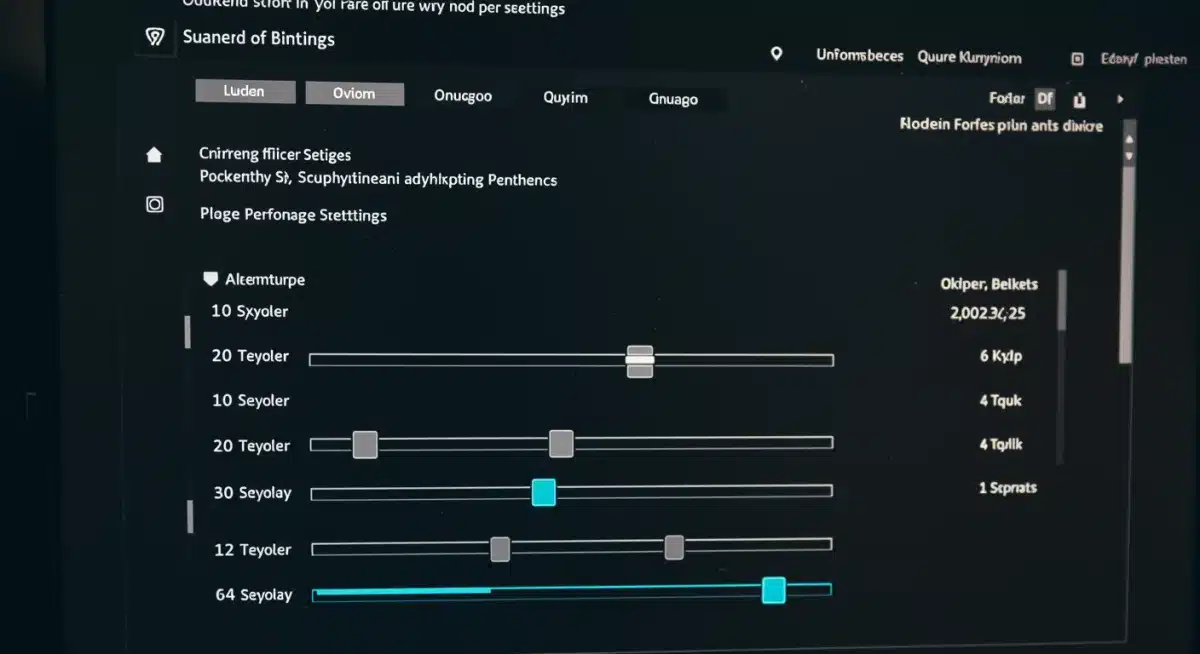
By carefully managing your in-game graphics settings, you can achieve a noticeable increase in your frame rates. This fine-tuning process allows you to maintain a visually appealing experience while ensuring your gameplay remains fluid and responsive, directly contributing to a better gaming session.
Clean up and optimize your storage drives
A cluttered and fragmented storage drive, especially traditional HDDs, can significantly slow down your system, impacting game loading times and overall responsiveness.
Even SSDs can benefit from some maintenance. Keeping your drives clean and optimized ensures that your games and operating system can access data quickly and efficiently.
Regular maintenance of your storage devices is a simple yet effective step in boosting your PC’s gaming performance.
Removing unnecessary files, uninstalling unused programs, and ensuring proper drive health contributes to a snappier system that can load games faster and reduce in-game stuttering.
Disk cleanup and temporary files
Over time, your system accumulates a vast amount of temporary files, old Windows update files, and other junk that consumes valuable disk space and can potentially slow down access times. A thorough disk cleanup can free up significant space and improve efficiency.
Windows Disk Cleanup: Use the built-in utility to remove temporary files, recycle bin contents, and system logs.
Third-party cleaners: Tools like CCleaner can help identify and remove additional junk files. Use with caution.
Uninstall unused programs: Go through your installed programs and uninstall anything you no longer use, especially large games.
Defragmentation for HDDs and TRIM for SSDs
The way data is stored and accessed on your drives impacts performance. While HDDs benefit from defragmentation, SSDs require a different approach to maintain their speed.
HDD Defragmentation: For traditional hard drives, defragmenting rearranges fragmented data into contiguous blocks, speeding up access. Do this regularly.
SSD TRIM command: For Solid State Drives, ensure TRIM is enabled. TRIM helps the SSD manage its stored data more efficiently, preventing performance degradation over time. Windows usually handles this automatically.
Avoid defragging SSDs: Defragmenting an SSD is unnecessary and can reduce its lifespan.

By regularly cleaning and optimizing your storage drives, you ensure that your system can access game files and operating system data as quickly as possible.
This reduces loading screens, minimizes stutter, and contributes to a more fluid and enjoyable gaming experience, making efficient use of your existing hardware.
Manage background processes and startup programs
Even with powerful hardware, unnecessary background processes and applications launching at startup can significantly drain your system’s resources.
These programs consume CPU, RAM, and even GPU cycles, leaving less available for your games.
Effectively managing these background tasks is a crucial step in optimizing your gaming PC for peak performance.
The cumulative effect of multiple applications running silently in the background can be surprising.
By identifying and disabling non-essential processes, you free up valuable resources that your games can then utilize, leading to higher FPS and a more responsive system overall. This is a free and impactful way to improve your gaming experience.
Identify resource-hungry applications
Some applications are notorious for their resource consumption, even when they appear idle. Knowing which programs to look out for can help you decide what to close before starting a game.
Task Manager: Use Windows Task Manager (Ctrl+Shift+Esc) to monitor CPU, memory, and disk usage. Sort by resource usage to identify culprits.
Gaming overlays: While some are useful, overlays from Discord, Steam, or NVIDIA/AMD can sometimes consume resources. Disable those you don’t actively use.
Cloud storage sync: Services like Dropbox, Google Drive, or OneDrive can sync files in the background, using bandwidth and CPU. Pause sync during gaming sessions.
Control startup programs
Many applications are configured to launch automatically when your PC starts, often without your knowledge. A long list of startup programs can significantly increase boot times and immediately begin consuming resources.
Task Manager (Startup tab): Disable unnecessary programs from starting with Windows. Be cautious not to disable essential system processes.
System Tray: Check your system tray (bottom-right corner of the taskbar) for running applications you can close manually before gaming.
Scheduled tasks: Some applications run scheduled tasks in the background. Review and disable any that are not critical.
By taking control of your background processes and startup programs, you ensure that your gaming PC dedicates its full power to running your games.
This direct resource allocation can lead to a noticeable boost in FPS and a smoother, more enjoyable gaming session, harnessing your existing hardware’s capabilities.
Adjust power settings for maximum performance
Windows power settings can significantly influence your PC’s performance, especially for gaming. By default, many systems are configured for balanced power usage, which can throttle your CPU and GPU to save energy.
Shifting to a high-performance power plan ensures that your hardware always operates at its maximum potential, delivering consistent frame rates.
This simple adjustment tells your operating system to prioritize performance over power efficiency.
While it might lead to slightly higher energy consumption, the benefit in gaming responsiveness and FPS is often well worth it. It’s a quick, free tweak that can unlock latent performance from your components.
High performance power plan
The ‘High performance’ power plan is designed to maximize system responsiveness and speed. It keeps your CPU running at a higher clock speed and prevents your GPU from downclocking during demanding tasks like gaming.
Access Power Options: Go to Control Panel > Hardware and Sound > Power Options.
Select High Performance: Choose the ‘High performance’ plan. If it’s not visible, click ‘Show additional plans’.
Custom settings: You can further customize this plan, ensuring settings like ‘Minimum processor state’ are set to 100% and ‘PCI Express Link State Power Management’ is off.
Graphics card specific power settings
Beyond general Windows power plans, both NVIDIA and AMD offer driver-level power management settings that can be fine-tuned for gaming. These settings dictate how aggressively your graphics card tries to save power versus delivering maximum performance.
NVIDIA Control Panel: Navigate to ‘Manage 3D settings’ > ‘Power management mode’ and select ‘Prefer maximum performance’.
AMD Radeon Software: In the ‘Gaming’ section, under ‘Global Graphics,’ find ‘Radeon WattMan’ or similar power settings to ensure performance is prioritized.
Per-game profiles: Consider creating specific power profiles for individual games that demand the most performance.
By ensuring your PC and graphics card are set to prioritize performance, you prevent unnecessary throttling and ensure your hardware is always ready to deliver its best.
This optimization is fundamental for maintaining stable and high FPS during your gaming sessions, extracting every bit of power from your current setup.
Overclocking (with caution)
Overclocking involves pushing your CPU, GPU, or RAM beyond their factory-set speeds to achieve higher performance. While it offers a significant FPS boost, it requires careful execution and understanding of the risks involved.
It’s a free way to gain performance, but it’s not without its caveats.
When done correctly, overclocking can provide a noticeable bump in frame rates, effectively giving you ‘better’ hardware without spending money.
However, it increases heat generation and power consumption, and if pushed too far, it can lead to system instability or even component damage. Proceed with caution and thorough research.
CPU overclocking fundamentals

Overclocking your CPU can improve performance in CPU-bound games, often by increasing its clock speed and core voltage. This is typically done through your motherboard’s BIOS/UEFI settings.
Compatible hardware: You need an unlocked CPU (e.g., Intel ‘K’ series, AMD ‘X’ or ‘G’ series) and a compatible motherboard (e.g., Intel Z-series, AMD B/X-series).
Cooling: Adequate cooling is paramount. A good aftermarket CPU cooler is often necessary.
Stress testing: After each incremental adjustment, stress test your CPU to check for stability and monitor temperatures. Tools like Prime95 or AIDA64 are useful.
GPU overclocking for visual gains
Overclocking your graphics card can directly boost FPS by increasing its core clock speed and memory clock speed. This is generally safer and easier than CPU overclocking, as software tools make it accessible.
Software tools: Use tools like MSI Afterburner or EVGA Precision X1.
Incremental adjustments: Increase core clock and memory clock in small steps (e.g., +10 MHz) and test stability.
Benchmarking and monitoring: Use benchmarks (e.g., Heaven Benchmark, 3DMark) and monitoring tools (e.g., HWMonitor) to track performance and temperatures.
Overclocking can be a powerful tool for extracting more performance from your existing hardware, but it demands patience and a methodical approach. Always prioritize stability and monitor your temperatures closely to ensure the longevity of your components while enjoying the boost in FPS.
Ensure proper cooling and airflow
Overheating is a silent killer of performance. When components like your CPU and GPU get too hot, they automatically reduce their clock speeds (thermal throttling) to prevent damage. This directly translates to lower FPS and inconsistent performance.
Ensuring proper cooling and airflow within your PC case is therefore critical for maintaining optimal gaming performance without spending on new hardware.
Good thermal management allows your components to run at their intended speeds for longer, preventing performance dips. It’s a proactive step that safeguards your hardware’s longevity while maximizing its output during intense gaming sessions. A cool PC is a happy and fast PC.
Case airflow optimization
The way air moves through your PC case significantly impacts cooling efficiency. An optimized airflow path draws in cool air and expels hot air effectively.
Intake and exhaust fans: Ensure you have a balanced setup of intake fans (bringing cool air in) and exhaust fans (pushing hot air out).
Cable management: Poor cable management can obstruct airflow. Tidy up cables to allow unobstructed air movement.
Dust filters: Regularly clean dust filters on your intake fans to prevent dust buildup, which impedes airflow.
Component-specific cooling
Beyond general case airflow, focusing on the cooling of individual components, especially the CPU and GPU, can yield significant benefits.
CPU cooler: Ensure your CPU cooler is properly seated and its fan is functioning optimally. Consider reapplying thermal paste if it hasn’t been done in a few years.
GPU fans: Monitor your graphics card’s fan speeds and ensure they are running effectively. Clean dust from the GPU heatsink fins.
Ambient temperature: Keep your room’s ambient temperature as cool as possible, especially during long gaming sessions.
By implementing effective cooling strategies, you prevent your PC components from thermal throttling, allowing them to consistently perform at their highest capabilities.
This stability directly translates to more reliable and higher FPS, making your existing gaming PC feel more powerful and responsive.
| Key Optimization | Brief Description |
|---|---|
| Driver Updates | Keep GPU and OS drivers current for performance enhancements and bug fixes. |
| In-Game Settings | Strategically lower demanding settings like shadows and anti-aliasing for FPS gains. |
| Storage Cleanup | Remove temporary files and defrag HDDs (or ensure TRIM for SSDs) for faster access. |
| Power Settings | Set Windows and GPU drivers to ‘High Performance’ mode to prevent throttling. |
Frequently asked questions
Yes, absolutely. By combining driver updates, optimizing in-game settings, managing background processes, ensuring proper cooling, and tweaking power settings, many users can achieve significant FPS improvements, often reaching or exceeding a 25% gain, without any hardware upgrades. It’s about maximizing your current system’s efficiency.
Overclocking can be safe if done cautiously and with proper research. It involves increasing component clock speeds, which generates more heat.
Adequate cooling and incremental adjustments with stability testing are crucial. Pushing components too far without sufficient cooling or voltage adjustments can lead to instability or hardware degradation. Always proceed with care.
It’s generally recommended to check for graphics driver updates monthly or whenever a new major game title is released, as manufacturers often release ‘Game Ready’ drivers.
However, only update if the new driver specifically addresses performance issues or offers optimizations for games you play. If your current drivers are stable and performing well, there’s no need to update constantly.
Yes, physically cleaning your PC, especially removing dust from fans, heatsinks, and vents, significantly improves cooling efficiency.
Better cooling prevents thermal throttling, where components slow down due to overheating, directly leading to more stable and potentially higher FPS. Regular physical maintenance is a crucial part of overall system optimization.
Generally, no. Windows Game Mode is designed to optimize your system for gaming by prioritizing game processes and suspending background tasks.
For most users, enabling Game Mode will result in a slight performance improvement or at least no negative impact. Only disable it if you experience specific issues or performance drops in certain games, which is rare.
Conclusion
Achieving a significant FPS boost on your gaming PC without hardware upgrades is not just a dream but a tangible reality through diligent optimization.
By systematically addressing driver updates, refining in-game settings, maintaining clean storage, managing background processes, configuring power plans, and ensuring optimal cooling, you can unlock a remarkable increase in your system’s gaming performance.
These steps, while requiring a bit of time and attention, are free and empower you to get the most out of your existing investment. Embrace these practices, and prepare to enjoy a smoother, more responsive, and ultimately more immersive gaming experience.