Extend Your Laptop’s Life by 2 Years: Avoid Costly Repairs
 In today’s fast-paced digital world, a laptop isn’t just a convenience; it’s an essential tool for work, education, and entertainment. Learning to extend laptop life by two years can save you significant money and hassle, helping you avoid costly repairs and the inconvenience of premature replacement.
This guide will walk you through five simple, yet powerful, habits that will ensure your device remains a reliable companion for years to come.
Mastering Proper Charging Habits for Battery Longevity
The battery is often the first component to show signs of wear and tear in a laptop, directly impacting its portability and overall utility. Understanding how to properly charge and discharge your device is crucial for preserving its health and extending its operational life.
Many users fall into common pitfalls that accelerate battery degradation, leading to reduced capacity and shorter usage times.
Modern laptop batteries, primarily lithium-ion, benefit from intelligent charging practices rather than the old advice of fully discharging before recharging.
These batteries perform best when kept within a certain charge range, typically between 20% and 80%. Constantly charging to 100% or letting it drop to 0% can put undue stress on the battery cells, diminishing their ability to hold a charge over time. Small, frequent charges are generally more beneficial than long, uninterrupted ones.
Avoid Overcharging and Deep Discharges
Unplug at 80%: Aim to disconnect your charger once the battery reaches around 80% to 90% capacity. This reduces the strain on the battery cells.
Charge Before 20%: Do not let your battery consistently drop below 20%. Deep discharges put significant stress on the battery and reduce its overall lifespan.
Monitor Battery Health: Use built-in tools or third-party software to monitor your battery’s health and capacity over time. This helps you understand its current state and adjust your charging habits accordingly.
Heat is another significant enemy of battery longevity. Excessive heat can accelerate chemical degradation within the battery, causing it to lose capacity faster.
Ensure your laptop is always in a well-ventilated area while charging and in use. Avoiding direct sunlight and placing it on soft surfaces that block vents are simple steps to mitigate heat buildup.
By adopting these mindful charging practices, you can significantly slow down the natural degradation process of your laptop’s battery.
This habit not only ensures longer daily use but also contributes significantly to the overall goal to extend laptop life, making it a key factor in avoiding costly battery replacements down the line.
Maintaining Optimal Cooling and Ventilation
Overheating is a silent killer for laptops, leading to performance throttling, system instability, and ultimately, component failure.
Proper cooling and ventilation are paramount to ensuring your laptop’s internal components operate within safe temperature ranges. Neglecting this aspect can drastically shorten your device’s lifespan and lead to expensive repairs.
Laptops are designed with intricate cooling systems, including fans and heat sinks, to dissipate heat generated by the CPU, GPU, and other components. When these systems are obstructed or become inefficient due to dust buildup, the internal temperature rises.
This increased heat stresses components, accelerating their degradation and potentially causing permanent damage.
Regularly Clean Vents and Fans
Dust Removal: Use compressed air to regularly clear dust from your laptop’s air vents and fan openings. Do this every few months, or more frequently if you live in a dusty environment or have pets.
Avoid Soft Surfaces: Never place your laptop on soft surfaces like beds, pillows, or carpets, as these can block the ventilation grilles and restrict airflow.
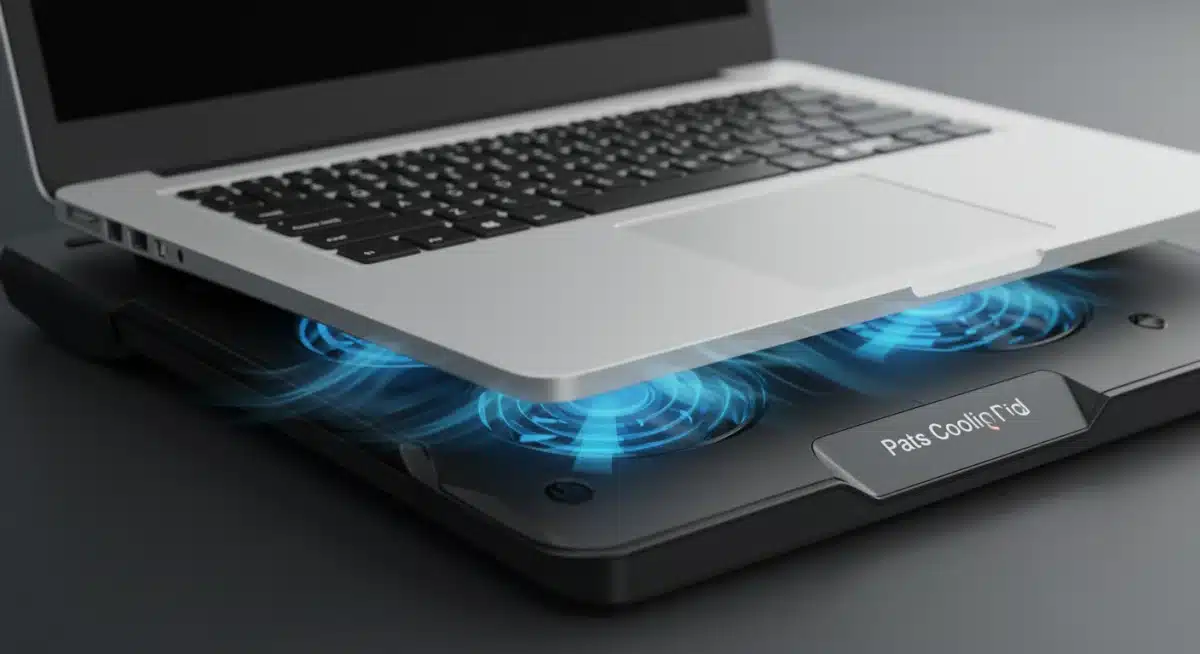
Consider a Cooling Pad: For users who engage in demanding tasks or live in warmer climates, a laptop cooling pad can significantly aid in heat dissipation, providing an additional layer of protection.
Beyond physical cleaning, monitoring your laptop’s temperature is equally important. Many operating systems and third-party applications offer tools to check CPU and GPU temperatures.
If you notice consistently high temperatures, especially during light usage, it might indicate a more serious issue that requires professional attention, such as dried-out thermal paste.
Establishing a routine for maintaining your laptop’s cooling system is a simple yet highly effective habit.
It directly contributes to stable performance, prevents hardware damage, and is a critical step in your effort to extend laptop life. A cool laptop is a happy laptop, capable of serving you reliably for years.
Practicing Digital Hygiene: Software Maintenance
While physical care is vital, the digital health of your laptop is just as important for its longevity and performance.
A cluttered, disorganized, or infected operating system can slow down your device, cause crashes, and even lead to hardware strain. Practicing good digital hygiene ensures your software runs smoothly, complementing your physical maintenance efforts.
Over time, unnecessary files, temporary data, and uninstalled programs can accumulate, consuming valuable storage space and system resources.
This digital clutter can lead to slower boot times, longer application loading times, and overall sluggish performance. Moreover, malware and viruses pose significant threats, potentially corrupting data and compromising system stability.
Essential Software Maintenance Practices
Regular Updates: Keep your operating system and all installed applications updated. Updates often include critical security patches and performance improvements that are essential for system health.
Antivirus and Malware Protection: Install reputable antivirus and anti-malware software and ensure it’s always up-to-date. Perform regular scans to detect and remove threats before they can cause significant damage.
Disk Cleanup and Defragmentation: Regularly run disk cleanup tools to remove temporary files, cached data, and other unnecessary clutter. For traditional hard drives (HDDs), periodic defragmentation can improve performance, though it’s not necessary for Solid State Drives (SSDs).
Uninstalling unused programs is another key aspect of digital hygiene. Each installed program, even if not actively used, can consume disk space and potentially run background processes that impact system performance.
Regularly review your installed applications and remove anything you no longer need. This frees up resources and reduces potential conflicts.

By diligently managing your software, you create a cleaner, more efficient computing environment.
This proactive approach to digital hygiene not only enhances your daily user experience but also plays a crucial role in preventing software-related issues that could indirectly impact hardware, thereby helping to extend laptop life and avoid premature degradation.
Protecting Your Laptop from Physical Damage
One of the most common reasons for costly laptop repairs or premature replacement is physical damage. Accidents happen, but many can be prevented with simple protective habits.
From drops and spills to scratches and pressure, physical trauma can render a laptop inoperable or significantly impair its functionality, leading to expensive component replacements.
Laptops are delicate instruments, and their portability makes them vulnerable to various hazards. A single drop can crack the screen, damage internal components like the hard drive, or bend the chassis.
Spills, even small ones, can short-circuit delicate electronics, leading to irreversible damage. Even seemingly minor issues like excessive pressure on the screen or keyboard can cause long-term problems.
Implementing Physical Protection Strategies
Use a Protective Case or Sleeve: Always transport your laptop in a padded case or sleeve that offers adequate protection against bumps and drops. This is especially important if you commute or travel frequently.
Avoid Eating and Drinking Near Your Laptop: Establish a habit of keeping food and beverages away from your workspace. A spill guard for your keyboard can offer some defense, but prevention is the best strategy.
Handle with Care: Always pick up your laptop from its base, using both hands if possible.Avoid lifting it by the screen, as this can put undue stress on the hinges and display assembly.
The environment in which you use your laptop also plays a role in its physical well-being. Extreme temperatures, humidity, and dusty conditions can all contribute to physical wear and tear.
While you can’t always control your environment, being mindful of these factors can help you take preventative measures, such as avoiding leaving your laptop in a hot car or in direct sunlight.
Adopting these protective habits significantly reduces the risk of physical damage, which is often the most expensive type of repair.
By treating your laptop with care and providing it with the necessary physical protection, you are directly contributing to its longevity and ensuring it remains a reliable tool for many more years, effectively helping to extend laptop life.
Regular Data Backup and System Restoration Points
While not directly extending the physical life of your laptop, regular data backup and the creation of system restoration points are invaluable habits that protect your digital life and can greatly simplify recovery from critical failures.
A hardware malfunction or software corruption can lead to irretrievable data loss and render your system unusable, making these practices essential.
Imagine losing years of photos, important documents, or critical work files due to a sudden hard drive failure or a severe virus infection.
Without backups, this data is gone forever, often leading to significant emotional and financial distress. System restoration points, on the other hand, allow you to revert your operating system to a previous, stable state, bypassing the need for a complete reinstallation.
Backup and Restoration Best Practices
Automated Cloud Backups: Utilize cloud services like Google Drive, Dropbox, or OneDrive for automated backups of your most important files. This ensures your data is safe even if your physical device is damaged or lost.
External Hard Drive Backups: Complement cloud backups with local backups on an external hard drive. This provides an additional layer of security and faster recovery options. Perform these backups regularly, ideally weekly or monthly depending on your data generation rate.
Create System Restore Points: For Windows users, enable and regularly create system restore points. These snapshots of your system’s state can be a lifesaver when software issues or driver conflicts arise, allowing for a quick rollback without affecting your personal files.
Beyond simple backups, considering a full disk image backup can be beneficial, especially for business users or those with complex software configurations. A disk image allows you to restore your entire operating system, applications, and files exactly as they were at the time of the backup, minimizing downtime in case of a catastrophic failure.
By integrating regular data backups and system restoration points into your routine, you safeguard your valuable information and provide yourself with robust recovery options.
This proactive stance significantly reduces the impact of unforeseen technical issues, ensuring that even if your laptop encounters problems, your digital assets remain secure and accessible, contributing to a stress-free computing experience and indirectly supporting the goal to extend laptop life by minimizing disruptive data loss events.
Understanding When to Seek Professional Help
While these habits significantly contribute to your laptop’s longevity, there are times when issues arise that are beyond simple user maintenance. Recognizing when to seek professional help is a crucial habit in itself, preventing minor problem
s from escalating into major, irreparable damage. Attempting complex repairs without the necessary expertise often leads to more harm than good.
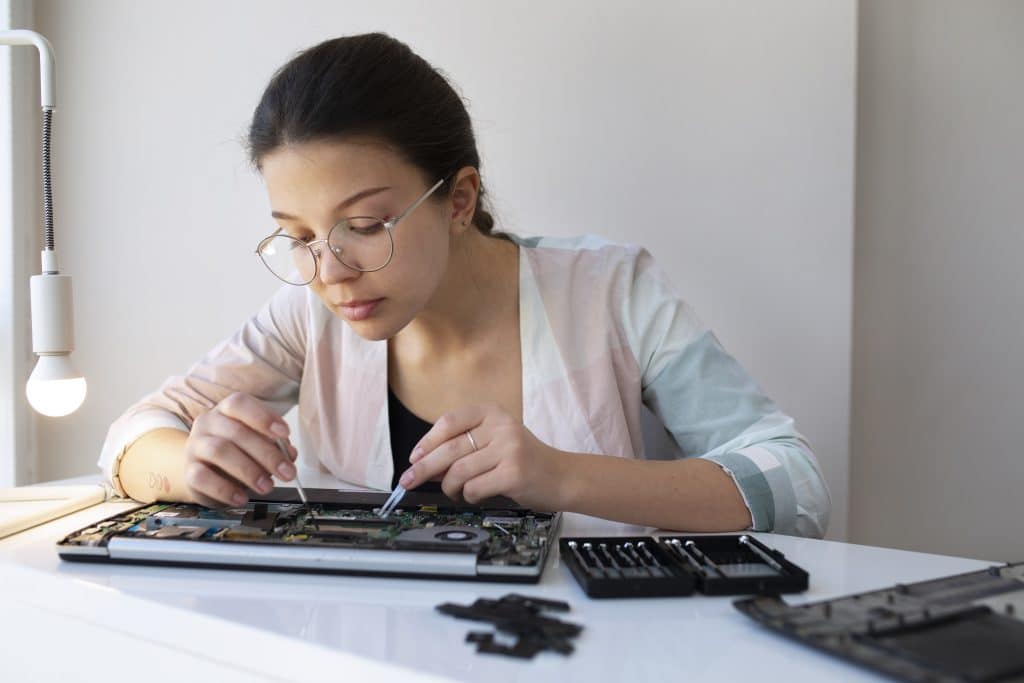
Many users, in an attempt to save money, might try to fix intricate hardware or software problems themselves. However, modern laptops are complex devices with specialized components and delicate assembly.
Incorrectly opening a laptop, using the wrong tools, or misdiagnosing an issue can void warranties, damage other components, or even create new problems, ultimately costing more in the long run.
Signs It’s Time for Professional Intervention
Persistent Hardware Failures: If you experience recurring issues like random shutdowns, strange noises, unresponsive components, or continuous overheating despite cleaning, it’s time to consult a professional.
Complex Software Malfunctions: When operating system errors, persistent malware infections, or driver conflicts cannot be resolved with standard troubleshooting, a technician can diagnose deeper issues.
Physical Damage Requiring Component Replacement: Cracked screens, damaged charging ports, or liquid spills often require specialized tools and expertise for safe and effective repair.
A reputable technician has the diagnostic tools, knowledge, and experience to accurately identify problems and perform repairs safely.
They can replace components, reinstall operating systems, and clean internal parts more thoroughly than the average user. Always research and choose a certified professional or an authorized service center for your laptop’s brand.
Knowing your limits and understanding when to hand over your device to an expert is a smart habit that protects your investment.
By seeking professional help for complex issues, you ensure that your laptop receives the correct care, preventing further damage and significantly contributing to its overall lifespan, reinforcing your efforts to extend laptop life effectively and avoid costly, self-inflicted repairs.
| Key Habit | Benefit for Laptop Longevity |
|---|---|
| Smart Charging | Extends battery health by avoiding overcharge/deep discharge. |
| Cooling Maintenance | Prevents overheating, protecting internal components from damage. |
| Digital Hygiene | Ensures smooth software operation, preventing system slowdowns and crashes. |
| Physical Protection | Minimizes risk of accidental damage, saving on expensive hardware repairs. |
Frequently Asked Questions About Laptop Longevity
It’s recommended to clean your laptop’s vents and fan openings with compressed air every 3 to 6 months.
If you live in a dusty environment or have pets, you might need to do it more frequently, perhaps every 1 to 2 months, to prevent dust buildup and maintain optimal airflow.
While modern laptops have smart charging features, constantly keeping it at 100% can still cause minor stress to the battery.
It’s generally better to keep the charge between 20% and 80% when possible. If you mostly use it plugged in, consider using battery management software to limit charging to a lower percentage.
No, Solid State Drives (SSDs) do not need defragmentation. Unlike traditional Hard Disk Drives (HDDs) that benefit from defragmentation to optimize read/write speeds, SSDs use flash memory and their performance is not affected by fragmentation.
Defragmenting an SSD can actually reduce its lifespan by causing unnecessary write cycles.
Generally, a good temperature range for a laptop CPU under normal load is between 40°C and 60°C (104°F to 140°F).
Under heavy load, temperatures can go up to 70°C or 80°C (158°F to 176°F). Consistently exceeding 90°C (194°F) is a sign of overheating and should be addressed.
The frequency of backups depends on how often your data changes and its importance. For critical data and frequently updated files, daily backups are ideal, especially using cloud services.
For less critical personal files, a weekly or bi-weekly backup to an external drive is usually sufficient to prevent significant data loss.
Conclusion: Make Your Laptop Last Longer
Extending the life of your laptop by two years is not a myth—it’s a realistic and achievable goal when you adopt consistent, mindful usage habits.
Small daily actions, when practiced regularly, can have a powerful long-term impact on your laptop’s performance, reliability, and lifespan.
By following proper laptop charging practices, maintaining efficient cooling and airflow, keeping your system clean and updated, and protecting your device from physical damage, you significantly reduce wear and tear on critical components.
Knowing when to seek professional laptop maintenance or repairs can also prevent minor issues from turning into expensive failures.
These practical laptop care strategies don’t just help you avoid costly repairs or premature replacements—they ensure a smoother, faster, and more dependable computing experience every day.
In the long run, taking care of your laptop means maximizing your investment, reducing electronic waste, and enjoying consistent performance well beyond the expected lifespan.