Unlock Google Workspace: 10 Tips for Maximum Productivity

 Google Workspace offers a powerful suite of tools designed to enhance efficiency, and by implementing specific strategies, users can significantly boost their productivity across communication, collaboration, and document management.
In today’s fast-paced digital world, maximizing efficiency is paramount. For millions across America, Unlock the Power of Google Workspace: 10 Tips and Tricks for Maximum Productivity isn’t just a catchy phrase; it’s a daily necessity. This comprehensive suite of tools, from Gmail to Google Docs, holds immense potential to streamline your work, but are you truly leveraging its full capabilities? Let’s dive into actionable strategies that will transform your digital workflow.
Mastering Gmail for Inbox Zero and Beyond
Gmail is often the starting point for many workdays, and its efficient management is crucial for overall productivity. Moving beyond simply sending and receiving emails, mastering Gmail involves utilizing its robust features to keep your inbox organized, prioritize communications, and reduce distractions. A cluttered inbox can be a major productivity drain, leading to missed deadlines and increased stress.
Effective Gmail management starts with understanding how to categorize and process emails quickly. This involves more than just deleting spam; it means creating a system that works for your specific needs, allowing you to focus on what truly matters.
By implementing a few key strategies, you can transform your inbox from a source of overwhelm into a highly organized command center.
Leveraging Labels and Filters
Labels in Gmail are far more powerful than traditional folders. They allow you to apply multiple categories to a single email, providing greater flexibility in organization. Filters, on the other hand, automate the labeling process, routing emails to their appropriate categories as soon as they arrive.
Create specific labels: Categorize emails by project, client, or priority (e.g., ‘Urgent’, ‘Follow-up’, ‘Project X’).
Automate with filters: Set up rules to automatically apply labels, archive, or even delete emails based on sender, subject, or keywords.
Use nested labels: Organize labels hierarchically for a cleaner sidebar and easier navigation (e.g., ‘Clients/Client A/Project A’).
Utilizing Snooze and Scheduled Send
The ‘Snooze’ feature allows you to temporarily remove an email from your inbox and have it reappear at a later, more convenient time.
This is invaluable for managing emails that require action but not immediately. Scheduled Send, conversely, lets you compose an email now and send it later, ensuring your message arrives at the optimal time for the recipient.
These tools help in time management and prevent important emails from getting lost in the daily deluge. By scheduling emails to be sent during business hours, you can also maintain a professional image and respect recipients’ work-life balance.
Ultimately, a well-managed Gmail inbox contributes significantly to reduced cognitive load and improved focus throughout your day. By systematically organizing and processing emails, you free up mental bandwidth for more complex tasks, making your entire Google Workspace experience more productive.
Optimizing Google Drive for Seamless File Management
Google Drive is more than just cloud storage; it’s a central hub for all your documents, spreadsheets, presentations, and more.
An unorganized Drive can quickly become a digital jungle, making it difficult to find files, share information, and collaborate effectively.
Optimizing your Google Drive for seamless file management is essential for any productive workflow, ensuring that your digital assets are always at your fingertips.
The key to an efficient Google Drive lies in a logical and consistent organizational structure. This means thinking strategically about how you name files, categorize them into folders, and manage sharing permissions. A well-structured Drive not only saves time but also reduces the risk of errors and improves team collaboration.
Implementing a Consistent Folder Structure
A consistent folder structure is the backbone of an organized Google Drive. Develop a system that makes sense for your work and stick to it. This might involve creating top-level folders for major projects or clients, with subfolders for specific tasks or document types.
Establish main categories: Start with broad categories like ‘Projects’, ‘Clients’, ‘Personal’, ‘Templates’.
Use subfolders: Break down main categories into more specific subfolders (e.g., ‘Projects/Q1 Marketing’, ‘Clients/Acme Corp/Reports’).
Maintain consistency: Ensure everyone on your team follows the same structure to avoid confusion.
Utilizing Naming Conventions and Search Filters
File naming might seem trivial, but a consistent naming convention can dramatically improve searchability and organization. Combine this with Google Drive’s powerful search filters, and you can locate any document in seconds, even without knowing its exact location.
Consider including dates, project codes, or version numbers in your file names. For example, ‘ProjectX_Report_2023-10-26_v2.docx’.
This simple practice eliminates ambiguity and makes it easier to track document evolution. Google Drive’s search bar also allows for advanced filtering by file type, owner, modification date, and keywords within the document content, making it an incredibly powerful tool for retrieval.
By investing time in setting up a robust organizational system in Google Drive, you create a foundation for efficient collaboration and quick access to information, ultimately boosting your overall productivity within Google Workspace.
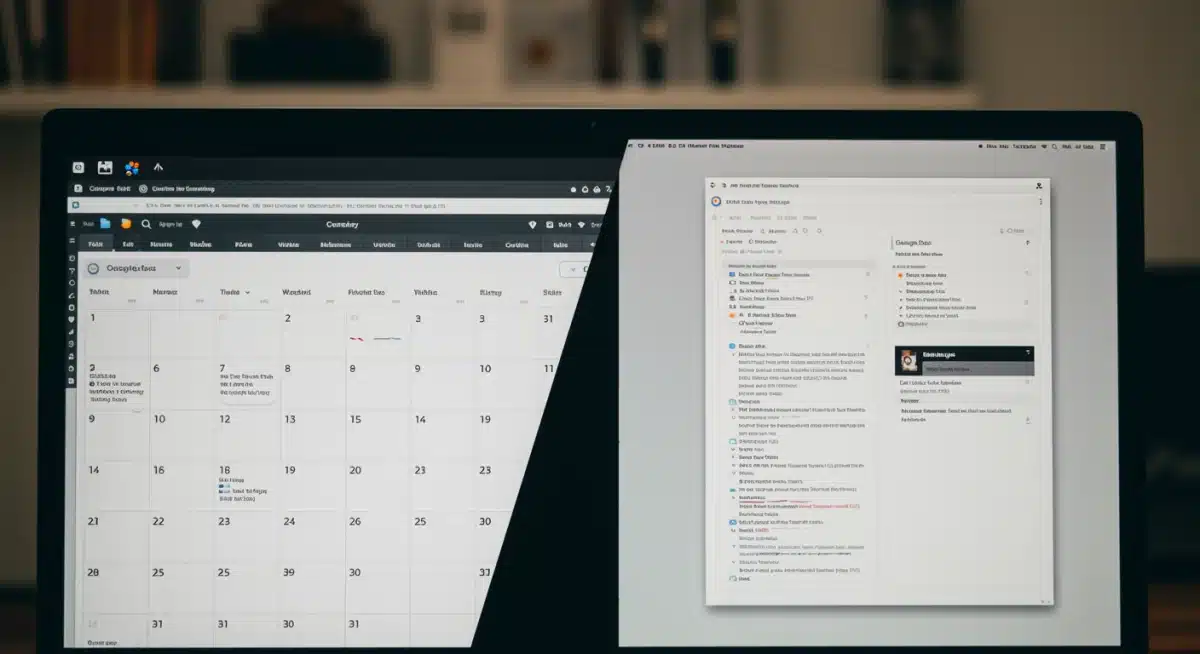
Collaborative Power with Google Docs, Sheets, and Slides
The true power of Google Workspace shines in its collaborative features, particularly within Docs, Sheets, and Slides.
These applications are designed from the ground up for real-time teamwork, enabling multiple users to work on the same document simultaneously, regardless of their physical location. This capability eliminates the need for endless email attachments and version control headaches, significantly accelerating project timelines.
Effective collaboration goes beyond simultaneous editing; it involves strategic use of comments, suggestions, and sharing permissions to ensure clear communication and efficient feedback loops.
When teams fully embrace these features, they can achieve a level of synergy that traditional desktop applications simply cannot match, making it a cornerstone of maximum productivity.
Real-time Editing and Version History
The ability to co-edit documents in real-time is a game-changer for teams. You can see changes being made live, which fosters a dynamic and interactive working environment. Beyond just editing, Google Workspace automatically saves every change and maintains a comprehensive version history, allowing you to revert to previous versions or see who made specific edits at any time.
Simultaneous collaboration: Multiple users can type and edit in the same document at once, seeing each other’s cursors and changes.
Transparent version tracking: Easily review past versions, identify changes, and restore older drafts if needed, removing the fear of losing work.
No more ‘final_final_v3.docx’: Eliminate confusion over document versions with a single, continuously updated file.
Leveraging Comments and Suggestions for Feedback
Effective communication is key to successful collaboration, and Google Docs, Sheets, and Slides provide excellent tools for this.
Comments allow you to ask questions, provide feedback, or highlight specific areas without altering the document’s main content. Suggestions mode, specifically in Docs, lets you propose changes that can be accepted or rejected by the document owner, making the review process incredibly smooth.
These features create a transparent feedback loop, ensuring that all contributors are on the same page and that revisions are handled efficiently.
Instead of disjointed email threads, all discussions related to a document are centralized within the document itself, making it easy to track decisions and progress. Mastering these collaborative tools not only speeds up document creation but also enhances the quality of the final output through integrated feedback.
Streamlining Your Day with Google Calendar & Tasks
Effective time management is a cornerstone of productivity, and Google Calendar, coupled with Google Tasks, offers a powerful duo for orchestrating your day.
Beyond simply marking appointments, these tools can become your personal productivity hub, helping you visualize your schedule, prioritize commitments, and ensure nothing falls through the cracks.
The integration between Calendar and Tasks means you can manage your to-do list directly within your schedule, creating a cohesive approach to time management.
The goal is not just to fill your calendar, but to strategically plan your time to maximize focus and minimize distractions. By actively using these features, you can gain a clearer understanding of your workload, allocate time more effectively, and ultimately achieve a better work-life balance.
Strategic Event and Task Management
Google Calendar allows for more than just simple event creation. You can set reminders, invite collaborators, add video conferencing links, and even attach relevant documents directly to your events.
Google Tasks, integrated seamlessly, enables you to create comprehensive to-do lists, set due dates, and break down larger projects into manageable steps.
Color-code your calendar: Assign different colors to different types of events (e.g., ‘Meetings’, ‘Deep Work’, ‘Personal’) for quick visual identification.
Integrate Tasks: Add tasks directly from Gmail or within Calendar, ensuring your to-dos are always visible alongside your schedule.
Set smart reminders: Utilize multiple reminders for important events and deadlines to avoid last-minute rushes.
Blocking Time for Focused Work
One of the most effective productivity strategies is ‘time blocking,’ where you allocate specific blocks of time in your calendar for focused, uninterrupted work on high-priority tasks. Google Calendar facilitates this by allowing you to create events for these work blocks, signaling to others (and yourself) that you are unavailable for distractions during these periods.
This practice helps in combating multitasking, which often reduces efficiency, and encourages deep work. By scheduling these focus blocks, you proactively carve out time for important projects, rather than reacting to incoming requests. Combined with clear task lists, Google Calendar becomes an indispensable tool for managing your time and attention strategically, leading to significant productivity gains.
Enhancing Communication with Google Meet and Chat
In a world where remote and hybrid work models are increasingly common, effective communication tools are non-negotiable for productivity.
Google Meet and Google Chat provide robust solutions for real-time interaction, fostering team cohesion and enabling swift decision-making, regardless of geographical distance. These tools move beyond basic messaging and video calls, offering features that enhance engagement and streamline information flow.
The goal is to create a communication environment that is both efficient and inclusive, ensuring that all team members can connect easily and contribute effectively. By leveraging the full capabilities of Meet and Chat, organizations can reduce communication bottlenecks and keep projects moving forward seamlessly.
Effective Video Conferencing with Google Meet
Google Meet has become an essential platform for virtual meetings, offering high-quality video and audio, screen sharing, and recording capabilities. Beyond these basics, features like live captions, breakout rooms, and Q&A sessions make meetings more interactive and accessible.
Utilize interactive features: Employ polls, Q&A, and hand raises to keep participants engaged and gather instant feedback.
Record important meetings: Record sessions for those who couldn’t attend or for future reference, ensuring no information is lost.
Share screen strategically: Use screen sharing to present documents, slides, or applications, enhancing clarity and collaboration during discussions.
Instant Messaging and Group Collaboration with Google Chat
Google Chat serves as a powerful instant messaging platform for teams, offering direct messages, group conversations, and dedicated ‘Spaces’ for project-specific collaboration. It integrates seamlessly with other Google Workspace apps, allowing for easy file sharing and task assignment within conversations.
Chat helps in reducing email overload by facilitating quick, informal communication. Spaces, in particular, provide a centralized place for teams to discuss projects, share updates, and store relevant files, creating a persistent record of conversations and decisions.
By using Chat strategically, teams can maintain constant communication, resolve issues quickly, and build a stronger sense of community, all contributing to a more productive work environment.
Automating Repetitive Tasks with Google Apps Script
While Google Workspace offers an impressive array of features out-of-the-box, its true potential for maximum productivity is often unlocked through automation.
Google Apps Script, a JavaScript-based scripting language, allows users to extend the functionality of Google Workspace and automate repetitive tasks across various applications. This powerful tool can save countless hours, reduce human error, and free up valuable time for more strategic work.
Many daily workflows involve tasks that are mundane and time-consuming, yet essential. Apps Script provides a way to turn these manual processes into automated routines, from sending personalized emails to updating spreadsheets based on form submissions. Embracing automation is a significant step towards a highly efficient digital workspace.
Introduction to Google Apps Script
Google Apps Script allows you to create custom functions and scripts that interact with your Google Workspace data. It runs on Google’s servers, meaning you don’t need to install any software, and your scripts can be triggered by various events, such as opening a document, submitting a form, or on a time-driven schedule.
No installation required: Write and run scripts directly from your web browser within any Google Workspace app.
Integrates across apps: Connects Gmail, Calendar, Drive, Docs, Sheets, Forms, and more to create powerful workflows.
Event-driven triggers: Automate scripts to run based on specific actions or at predetermined intervals.
Practical Automation Examples
The possibilities with Google Apps Script are vast, limited only by your imagination and coding skills (though many resources exist for beginners). Simple scripts can have a profound impact on daily productivity.
For instance, you could write a script that automatically sends a personalized follow-up email to new contacts added to a Google Sheet.
Another common use is to automatically move old files in Google Drive to an archive folder after a certain period or to generate daily reports from a Google Sheet and email them to stakeholders.
You can even create custom menu items in Docs or Sheets to trigger specific actions, making complex tasks accessible with a single click.
By identifying your most repetitive tasks and exploring how Apps Script can automate them, you can significantly enhance your workflow efficiency and focus on higher-value activities.
Leveraging Google Forms for Data Collection and Feedback
In any productive environment, gathering information efficiently and receiving constructive feedback are critical. Google Forms provides an intuitive and versatile solution for creating surveys, quizzes, registration forms, and data collection tools.
Its ease of use, combined with seamless integration with Google Sheets, makes it an indispensable asset for streamlined data management and decision-making within Google Workspace.
Moving beyond simple questionnaires, Google Forms can be a powerful instrument for engaging with your audience, whether internal or external, and collecting structured data that can be analyzed quickly. This capability reduces manual data entry and ensures consistency, contributing directly to increased productivity.
Creating Effective Forms
Designing an effective Google Form involves more than just listing questions. It requires thoughtful consideration of question types, logic, and presentation to ensure you gather accurate and comprehensive data.
Google Forms offers a variety of question formats, from multiple choice and checkboxes to short answer and paragraph responses, as well as file upload options.
Choose appropriate question types: Select the best format for each question to facilitate clear responses and easy analysis.
Utilize section breaks and logic: Guide respondents through the form with conditional logic, showing relevant questions based on previous answers.
Customize themes and branding: Make your forms visually appealing and consistent with your brand to enhance user experience.
Analyzing Responses with Google Sheets
One of the most powerful aspects of Google Forms is its direct integration with Google Sheets. All responses are automatically collected and organized into a spreadsheet, providing a live database of your collected data. This immediate transfer eliminates manual data entry and allows for instant analysis.
Once data is in Google Sheets, you can leverage its powerful functions for sorting, filtering, charting, and even pivot tables to extract insights. This seamless flow from data collection to analysis means you can quickly make informed decisions, track trends, and act on feedback without delay.
For example, a marketing team could collect customer feedback via Forms, and then instantly analyze sentiment in Sheets to refine their strategy. This integrated approach saves time and ensures that data-driven decisions are made efficiently, boosting overall productivity.
| Key Strategy | Benefit to Productivity |
|---|---|
| Gmail Labels & Filters | Achieve Inbox Zero, prioritize communications, and reduce distractions. |
| Google Drive Organization | Streamline file access, improve collaboration, and eliminate search time. |
| Calendar Time Blocking | Enhance focus, manage time effectively, and achieve deep work. |
| Apps Script Automation | Automate repetitive tasks, save hours, and reduce manual errors. |
Frequently Asked Questions About Google Workspace Productivity
To quickly find files, utilize Google Drive’s powerful search bar. You can filter by file type, owner, modification date, and even keywords within the document content. Employing consistent naming conventions and a well-structured folder hierarchy further streamlines the search process, saving valuable time.
The most effective way to manage your Gmail inbox is by using labels and filters to categorize and automate email processing. Additionally, leverage the ‘Snooze’ feature for emails requiring later action and ‘Scheduled Send’ to ensure messages arrive at optimal times, helping you maintain inbox zero.
These applications facilitate real-time co-editing, allowing multiple users to work on the same document simultaneously. They also offer robust version history and integrated commenting/suggestion features, streamlining feedback loops and eliminating the need for cumbersome email attachments and version control issues.
Absolutely. Google Calendar is excellent for time blocking, where you schedule specific periods for focused work on high-priority tasks. Integrating Google Tasks allows you to manage your to-do list directly within your schedule, offering a holistic view of your commitments and helping you allocate time effectively.
Google Apps Script is a JavaScript-based platform that allows you to automate repetitive tasks across Google Workspace applications. By writing simple scripts, you can automate workflows like sending emails, updating spreadsheets, or organizing files, saving significant time and reducing manual effort.
Conclusion
Ultimately, to truly Unlock the Power of Google Workspace: 10 Tips and Tricks for Maximum Productivity involves a commitment to exploring and integrating its myriad features into your daily routine. From refining your Gmail habits to automating tasks with Apps Script, each tip offers a pathway to a more efficient and less stressful workday.
By embracing these strategies, you’re not just using Google Workspace; you’re transforming it into a personalized engine for unparalleled productivity, empowering you to achieve more in less time and focus on what truly matters.