Optimize Your PC’s Performance: 7 Tips for a Faster System

 To significantly optimize computer performance, focus on regularly updating software, decluttering your hard drive, managing startup programs, upgrading hardware when necessary, and maintaining good digital hygiene for a consistently fast and efficient system.
Is your computer feeling sluggish, taking ages to boot up, or struggling with everyday tasks? You’re not alone. Many users experience a gradual decline in their system’s responsiveness over time.
Fortunately, there are effective strategies you can implement to significantly optimize computer performance, transforming your slow machine into a faster, more efficient powerhouse. This guide will walk you through seven essential tips to breathe new life into your PC.
Clean Up Your Hard Drive: Digital Decluttering
A cluttered hard drive is often the primary culprit behind a slow computer. Just like a physical space, a digital one filled with unnecessary files and programs can impede performance. Taking the time to regularly clean up your hard drive can free up valuable space and allow your system to run more smoothly.
Think of your hard drive as a busy highway. When it’s full of unnecessary traffic (files), everything slows down. By removing old programs, temporary files, and duplicate documents, you’re essentially clearing lanes, allowing data to flow more freely and applications to load faster. This isn’t just about freeing up space; it’s about reducing the workload on your operating system.
Identify and Remove Unused Programs
Over time, we install numerous applications, many of which we rarely or never use. These programs can consume disk space, run background processes, and even interfere with other software. Regularly reviewing your installed applications and uninstalling those you no longer need is a crucial step in digital decluttering.
Go to ‘Settings’ > ‘Apps’ > ‘Apps & features’ on Windows.
On macOS, drag applications from the ‘Applications’ folder to the ‘Trash’.
Prioritize uninstalling large programs or those with known resource demands.
Be cautious when uninstalling; ensure you recognize the program before removal.
After uninstalling, it’s a good practice to restart your computer to ensure all associated files and processes are properly terminated. This simple act can prevent lingering components from consuming resources.
Delete Temporary Files and Downloads
Your operating system and web browsers constantly create temporary files to function. While some are automatically deleted, many remain and accumulate, taking up significant space. Similarly, your ‘Downloads’ folder can become a digital dumping ground for files you only needed once.
Regularly clearing these files is a quick win for performance. Windows, for example, has a built-in Disk Cleanup utility that can automate much of this process. For browser-specific temporary files (cache and cookies), you can usually clear them through your browser’s settings. Just remember that clearing browser cache might require you to log back into some websites.
In conclusion, a meticulous approach to cleaning up your hard drive, by removing unused programs and temporary files, lays a solid foundation for a faster and more responsive computer. This initial step often yields noticeable improvements and sets the stage for further optimization.
Manage Startup Programs: Tame the Boot-Up Beast
One of the most frustrating aspects of a slow computer is a lengthy boot-up time. This is often caused by an excessive number of programs configured to launch automatically when you start your system. While some startup programs are essential, many are not, and they collectively consume significant system resources.
Every program that launches at startup demands a piece of your computer’s memory and processor cycles, delaying the moment you can actually start using your machine. By strategically managing these programs, you can dramatically reduce boot times and free up resources for more important tasks.
Disable Unnecessary Startup Applications
Most operating systems provide a simple way to control which applications launch at startup. Identifying and disabling those that aren’t critical for immediate use is a key optimization technique. Many applications, from messaging apps to cloud storage services, automatically add themselves to the startup list without your explicit consent.
On Windows, open ‘Task Manager’ (Ctrl+Shift+Esc), then navigate to the ‘Startup’ tab.
On macOS, go to ‘System Settings’ > ‘General’ > ‘Login Items’.
Review the list and disable any programs you don’t need running immediately.
Look for applications with a high ‘Startup impact’ to prioritize.
Be cautious not to disable essential system services or security software, as this could compromise your computer’s stability or safety. When in doubt, it’s always better to research a program before disabling it.
Understand Background Processes
Beyond explicit startup programs, many applications run background processes that consume resources even when the main application isn’t actively in use. These can include update checkers, sync services, or helper applications. While some are vital, others are merely resource hogs.
Monitoring your system’s background processes can give you insights into what’s consuming your resources. Tools like the Task Manager (Windows) or Activity Monitor (macOS) allow you to see active processes and their resource usage.
If you identify a non-essential background process consistently consuming high CPU or memory, consider adjusting its settings within the associated application or uninstalling the application entirely if it’s not needed.
Effectively managing your startup programs and understanding background processes is a powerful way to reclaim control over your computer’s resources. This leads to faster boot times and a more responsive system from the moment you log in.
Keep Your Software Updated: Security and Performance
Software updates are often viewed as an inconvenience, prompting restarts and interrupting workflows. However, maintaining up-to-date operating systems, applications, and drivers is a cornerstone of both computer security and performance.
These updates frequently include bug fixes, performance enhancements, and security patches that are crucial for a smooth and safe computing experience.
Neglecting updates can leave your system vulnerable to security threats and can prevent you from benefiting from optimizations that developers have integrated into newer versions of their software. It’s a proactive measure that pays dividends in stability and speed.
Operating System Updates
Your operating system (Windows, macOS, Linux) is the foundation of your computer. Developers continually release updates to improve stability, add new features, and, most importantly, patch security vulnerabilities. Running an outdated OS version can expose you to malware and performance issues.
Enable automatic updates for your operating system whenever possible.
Regularly check for and install pending updates, even if it requires a restart.
These updates often include critical performance improvements for core system functions.
While updates can sometimes introduce new bugs, the benefits of staying current almost always outweigh the risks. Major updates often bring significant architectural improvements that can directly translate to a faster computer.
Application and Driver Updates
Beyond the operating system, individual applications and hardware drivers also receive frequent updates. Outdated drivers, especially for graphics cards, can lead to performance bottlenecks in games and demanding applications. Similarly, older versions of software might not be optimized for newer operating systems or hardware.
Many applications have built-in update checkers, or you can visit the developer’s website. For drivers, it’s best to check the manufacturer’s website for your specific hardware components. Keeping everything current ensures compatibility and allows you to leverage the latest performance optimizations.
In summary, embracing regular software updates is a non-negotiable step for anyone looking to maintain optimal computer performance and security. It’s a simple habit that yields significant long-term benefits.
Invest in an SSD: The Speed Game Changer
If there’s one hardware upgrade that offers the most dramatic improvement in computer performance for the average user, it’s replacing a traditional Hard Disk Drive (HDD) with a Solid State Drive (SSD). The difference in speed is profound, affecting everything from boot times to application loading and file transfers.
HDDs rely on spinning platters and read/write heads, which are mechanical and inherently slower. SSDs, on the other hand, use flash memory, similar to a large USB drive, allowing for instantaneous data access. This fundamental difference translates into a vastly superior user experience.
Why SSDs are Superior for Performance
The speed advantage of SSDs over HDDs is not just theoretical; it’s tangible in everyday use. Your operating system, frequently used applications, and often-accessed files will load almost instantly. This eliminates the frustrating waiting times associated with traditional drives.
Faster Boot Times: Your computer will start up in seconds, not minutes.
Quicker Application Loading: Programs launch almost instantly.
Improved File Transfer Speeds: Moving large files becomes significantly faster.
Enhanced Responsiveness: The entire system feels snappier and more fluid.
Even if your computer has a relatively slow processor or limited RAM, installing an SSD can make it feel like a completely new machine, often extending its usable life by several years.
Upgrading to an SSD
The process of upgrading to an SSD involves either replacing your existing HDD or adding an SSD as a secondary drive (if your system supports it). For most users, cloning their existing operating system to the new SSD is the most straightforward approach, avoiding a complete reinstallation of Windows or macOS.
While the physical installation can be a bit daunting for beginners, numerous online guides and videos can walk you through the process step-by-step. If you’re uncomfortable with the hardware aspect, many computer repair shops offer SSD upgrade services. Given the performance boost, the investment is often well worth it.
In conclusion, an SSD upgrade is arguably the single most impactful step you can take to significantly boost your computer’s performance. It’s an investment that delivers immediate and noticeable improvements across the board, making your daily computing tasks a much more pleasant experience.
Optimize Power Settings: Balance Performance and Efficiency
Power settings might seem like a minor detail, but they play a crucial role in how your computer performs. While designed to conserve energy, default power plans often prioritize battery life or energy efficiency over raw performance. Adjusting these settings can unlock your computer’s full potential, especially when plugged into a power source.
Understanding the balance between power consumption and performance is key. For a desktop PC or a laptop perpetually plugged in, there’s little reason not to prioritize performance. For a laptop on battery, a balanced approach is usually best.
High-Performance Power Plan
Most operating systems offer various power plans. The ‘High Performance’ plan, or a similar setting, tells your computer to consume more power to deliver maximum speed. This means your processor will run at higher clock speeds, and other components will operate without artificial limitations.
On Windows, go to ‘Control Panel’ > ‘Power Options’.
Select the ‘High performance’ plan. If not visible, click ‘Show additional plans’.
You can customize advanced settings within this plan to fine-tune specific components.
Be aware that selecting a high-performance plan will increase energy consumption and generate more heat, which might lead to fans running more frequently. However, for tasks requiring maximum processing power, this is the optimal setting.
Customizing Power Settings for Laptops
For laptop users, the choice of power plan is more nuanced. When running on battery, a ‘Balanced’ or ‘Power Saver’ mode is advisable to extend battery life. However, when plugged in, switching to ‘High Performance’ can significantly improve responsiveness, especially for demanding applications like video editing or gaming.
Some laptops also come with manufacturer-specific power management software that offers additional controls and profiles. Familiarizing yourself with these tools can help you quickly switch between optimal settings based on your current usage scenario.
By optimizing your power settings, you directly influence how your computer allocates its resources. Switching to a high-performance plan when plugged in can provide a noticeable boost, ensuring your system isn’t artificially throttled when you need its full power.
Add More RAM: Multitasking Made Easy
Random Access Memory (RAM) is your computer’s short-term memory, crucial for multitasking and running multiple applications smoothly.
If your computer frequently slows down when you have many browser tabs open, are editing large files, or running several programs simultaneously, insufficient RAM is a likely bottleneck. Adding more RAM can dramatically improve your system’s ability to handle demanding workloads.
Think of RAM as your desk space. The more RAM you have, the more applications and files your computer can have open and readily accessible without constantly having to fetch data from the slower hard drive. This results in a much smoother and more responsive experience.
How RAM Impacts Performance
When your computer runs out of physical RAM, it starts using a portion of your hard drive as ‘virtual memory’ or ‘swap space.’ Since hard drives are significantly slower than RAM, this process, known as ‘paging,’ causes a noticeable slowdown. More RAM means less reliance on virtual memory and faster overall operation.
Improved Multitasking: Run more applications simultaneously without lag.
Faster Application Switching: Switch between programs instantly.
Smoother Browsing: Handle dozens of browser tabs without issues.
Enhanced Content Creation: Better performance for video editing, graphic design, and gaming.
For most modern users, 8GB of RAM is a minimum, with 16GB being the sweet spot for general use and light content creation. Power users and gamers often benefit from 32GB or more.
Choosing and Installing RAM
Upgrading RAM is one of the simpler hardware upgrades. First, you need to determine what type of RAM your computer uses (DDR3, DDR4, DDR5), its speed (MHz), and its maximum capacity. You can usually find this information through your system’s specifications or by using a tool like CPU-Z.
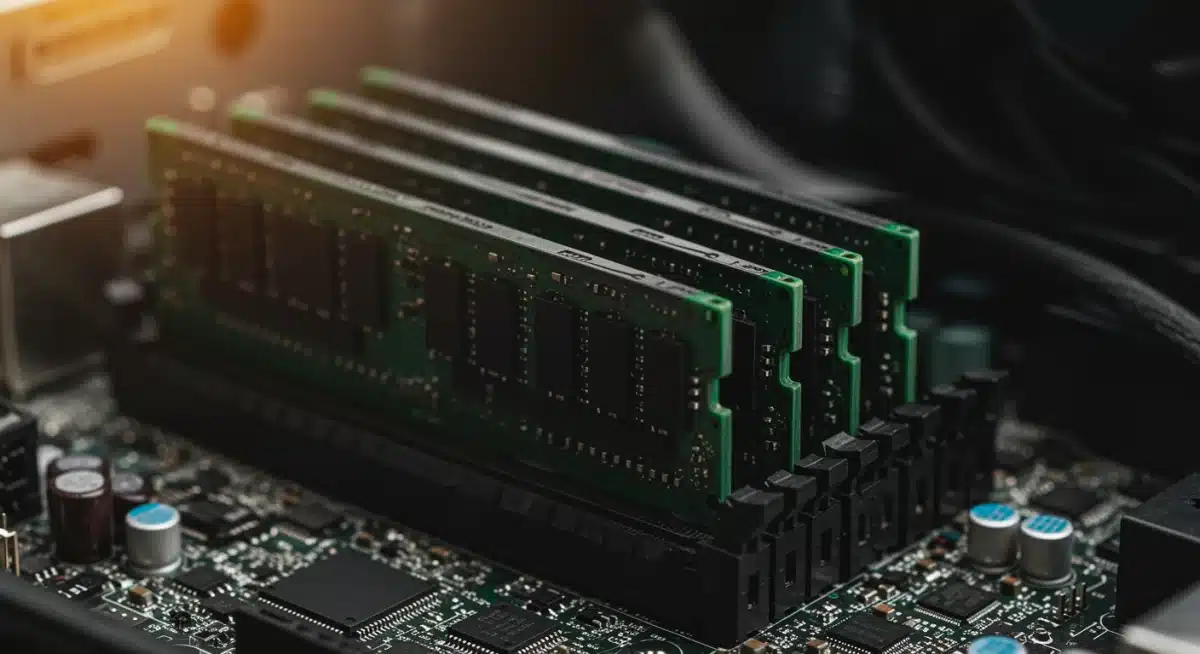
Once you have the correct RAM modules, installation typically involves opening your computer case, locating the RAM slots, and gently snapping the new modules into place. It’s a straightforward process, but always consult your computer’s manual or an online guide to ensure you do it correctly and safely.
In conclusion, if your computer struggles with heavy workloads or multitasking, increasing your RAM is a highly effective way to boost performance. It allows your system to handle more data simultaneously, leading to a much more fluid and responsive computing experience.
Regularly Scan for Malware and Viruses: Digital Hygiene
Malware and viruses aren’t just security risks; they are significant performance inhibitors. Malicious software can run hidden processes, consume CPU cycles, hog network bandwidth, and even corrupt system files, leading to a noticeably slower and unstable computer.
Regular and thorough scanning for these threats is a fundamental aspect of maintaining optimal computer performance and digital hygiene.
Even if you’re careful about what you download and click, new threats emerge daily. A robust antivirus solution acts as your computer’s immune system, constantly defending against insidious programs that seek to compromise your data and slow down your machine.
The Impact of Malware on Performance
Malware can manifest in various ways, from annoying pop-ups to rootkits that deeply embed themselves in your operating system. Many types of malware are designed to operate stealthily in the background, making them hard to detect without specialized software. Common performance issues caused by malware include:
Slow System Response: Applications take longer to open and respond.
High CPU/Memory Usage: Unexplained spikes in resource consumption.
Frequent Crashes or Freezes: System instability and unexpected shutdowns.
Excessive Network Activity: Malware often communicates with remote servers.
These issues directly impact your user experience, making your computer frustratingly slow and unreliable. Identifying and removing malware is therefore a critical step in performance optimization.
Choosing and Using Antivirus Software
While Windows Defender (built into Windows) offers a decent baseline of protection, many users opt for third-party antivirus solutions for more comprehensive features and protection. Regardless of your choice, ensure it’s reputable and kept up-to-date.
Schedule regular full system scans, ideally weekly, to catch any threats that might have slipped through real-time protection. If you suspect an infection, perform an immediate, deep scan. It’s also wise to occasionally use a second-opinion scanner (a different antivirus program) to ensure nothing was missed by your primary software.
Maintaining vigilance against malware and viruses is non-negotiable for a fast and secure computer. By regularly scanning and keeping your antivirus software updated, you protect your system from digital invaders that can severely degrade performance and compromise your privacy.
Optimize Your Browser: Speed Up Your Web Experience
For many users, a significant portion of computer usage revolves around web browsing. Therefore, an optimized browser is critical for overall system performance and a smooth online experience. A sluggish browser can make your entire computer feel slow, even if the underlying system is otherwise well-tuned. Several factors can contribute to browser slowdowns, and addressing them can yield significant improvements.
Just like your operating system, your web browser can become a repository for unnecessary data and extensions. Regular maintenance of your browser is essential to keep it running at peak efficiency, ensuring quick page loads and responsive navigation.
Manage Browser Extensions
Browser extensions, while often useful, can be major resource hogs. Each extension adds code that needs to run in the background, consuming memory and CPU cycles. An excessive number of extensions, or poorly coded ones, can severely impact browser speed and even cause crashes.
Regularly review your installed extensions.
Disable or remove any extensions you don’t frequently use.
Be wary of extensions from unknown developers or those that request excessive permissions.
Consider if an extension’s benefit outweighs its potential performance cost.
Many browsers offer a ‘task manager’ (e.g., Shift+Esc in Chrome) that shows you which extensions are consuming the most resources. This can help you identify and prune problematic add-ons.
Clear Cache and Cookies Regularly
Your browser’s cache stores temporary files (images, scripts, etc.) from websites you visit to speed up future visits. While generally beneficial, an overgrown cache can sometimes become corrupted or simply too large, leading to slowdowns. Similarly, cookies, while necessary for many site functions, can accumulate and occasionally cause issues.
Periodically clearing your browser’s cache and cookies can resolve many performance problems. Most browsers allow you to do this through their settings or privacy menus. While it might mean having to log back into some websites, the resulting performance boost is often worth the minor inconvenience.
By actively managing your browser extensions and regularly clearing its cache and cookies, you can ensure your web browsing experience remains fast and fluid, contributing significantly to the overall perception of a high-performing computer system.
| Key Optimization Tip | Brief Description |
|---|---|
| Hard Drive Cleanup | Remove unused programs, temporary files, and downloads to free up space and improve data flow. |
| Manage Startup Programs | Disable unnecessary applications launching at boot to reduce startup times and free up resources. |
| Invest in an SSD | Replace your HDD with an SSD for significantly faster boot times, application loading, and overall system responsiveness. |
| Add More RAM | Increase your computer’s memory to improve multitasking capabilities and prevent slowdowns from virtual memory usage. |
Frequently Asked Questions About Computer Performance
It’s advisable to perform a thorough hard drive cleanup at least once every few months. However, deleting temporary files and clearing your browser cache can be done more frequently, even weekly, especially if you’re a heavy computer user. Regular maintenance prevents significant slowdowns.
For most older computers still using an HDD, an SSD upgrade offers the single most impactful performance boost. It dramatically improves boot times and application loading, often making an old machine feel like new. The cost-to-benefit ratio is usually excellent, extending the computer’s useful life.
Yes, absolutely. Each browser extension consumes system resources (RAM, CPU). Having too many, especially poorly optimized ones, can lead to noticeable browser lag, slower page loads, and even overall system slowdowns. Regularly review and disable or remove unnecessary extensions for a smoother experience.
For most general users and light multitasking, 8GB of RAM is considered the minimum. However, 16GB is the sweet spot for a smooth experience with multiple applications, browser tabs, and light content creation. Power users and gamers often benefit from 32GB or more.
If you have a traditional HDD, defragmentation can still offer minor performance improvements by organizing data. However, for SSDs, defragmentation is unnecessary and can even reduce the drive’s lifespan, as SSDs function differently. Windows typically manages this automatically for HDDs.
Conclusion
Achieving and maintaining optimal computer performance is an ongoing process that combines smart software management with strategic hardware considerations.
By diligently implementing these seven tips—cleaning your hard drive, managing startup programs, keeping software updated, considering an SSD, optimizing power settings, adding more RAM, and regular malware scans—you can transform a sluggish system into a responsive and efficient workhorse.
These practices not only enhance your daily computing experience but also extend the lifespan of your device, ensuring you get the most out of your investment. Embrace these habits, and enjoy a faster, more reliable computer.